
How to Use HelpLook with Context Link: A Step-by-Step Guide
Combining a dedicated knowledge base platform with an AI content connector gives your team the best of both worlds: a polished self‑service portal for customers and instant access to that same knowledge for your internal AI assistants. In this guide, you’ll learn exactly how to use HelpLook together with Context Link to achieve that — without copying content.
Understanding HelpLook and Context Link

How to Use HelpLook with Context Link: A Step-by-Step Guide product interface and feature overview.
HelpLook is an all-in-one AI knowledge base software that lets you create a structured, search‑optimized help center, internal wiki, or product manual without any coding. It provides a rich editor, a customizable public or private site, an embeddable widget, and an AI‑powered search and chatbot that answers questions from your published content.
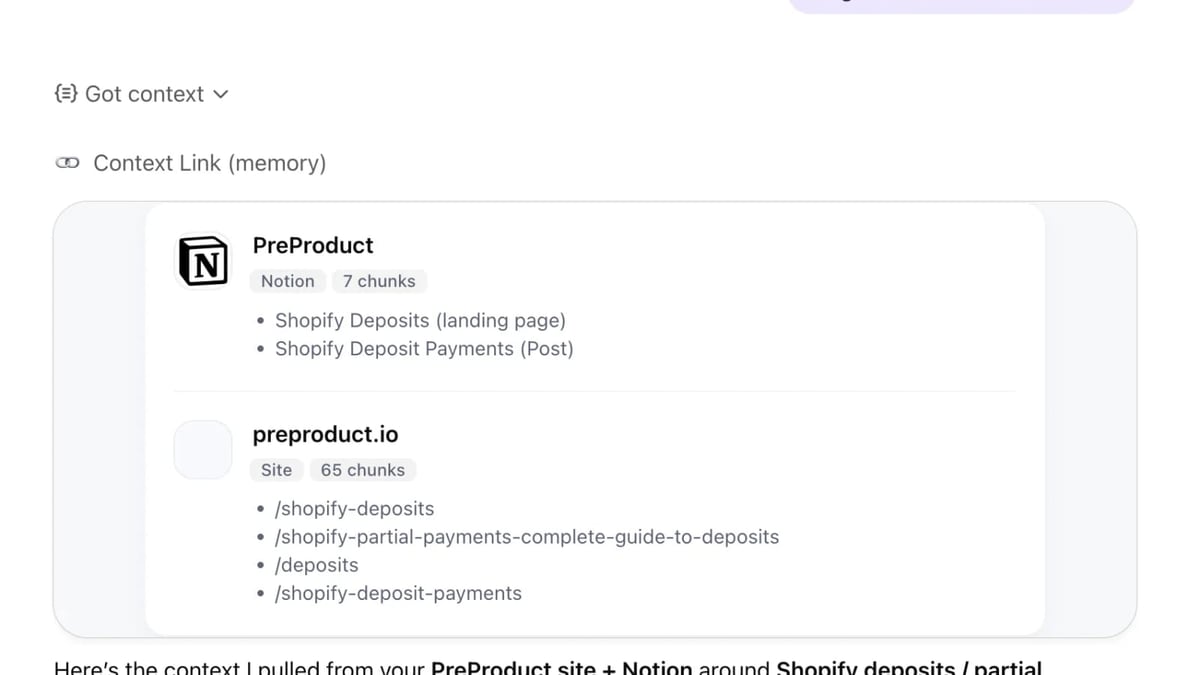
Context Link is a unified knowledge base platform that connects to tools you already use — Notion, Google Docs, websites, email, and more — and makes that content searchable by AI assistants like ChatGPT, Claude, and any MCP‑compatible agent. Instead of copying articles into yet another tool, you point Context Link at your existing materials. It syncs them, creates semantic chunks, and lets your AI pull precise, cited answers.
When paired, HelpLook becomes the single source of truth for your help center, while Context Link bridges that content to the AI assistants your team already uses.
Why Combine HelpLook with Context Link?

How to Use HelpLook with Context Link: A Step-by-Step Guide product interface and feature overview.
This combination solves a stubborn problem: your knowledge base is full of accurate, up‑to‑date answers, but many internal users still switch tabs to search it manually, and external customers only see what the widget surfaces. By connecting HelpLook to Context Link, you can:
- Let internal teams query the help center from AI tools – Support agents, sales reps, and developers can ask ChatGPT or Claude a question and get a direct answer with a link back to the original HelpLook article.
- Keep AI context current automatically – As your HelpLook site updates, Context Link re‑syncs so the AI always pulls the freshest information.
- Eliminate content duplication – No need to maintain a separate knowledge base for AI ingestion or copy‑paste snippets.
- Improve answer consistency – Both the customer‑facing HelpLook chatbot and internal AI assistants source from the same curated articles.
Companies like HelpLook use this approach to power a customer‑facing help center while feeding internal AI assistants with the same documentation, saving support time and keeping everyone aligned.
Step‑by‑Step: Integrating HelpLook with Context Link
How to Use HelpLook with Context Link: A Step-by-Step Guide product interface and feature overview.
1. Set Up and Publish Your HelpLook Site
First, create your knowledge base in HelpLook. Write articles, organize them into categories, and configure the AI‑powered search and chatbot if you plan to use the widget. Publish the site using a custom domain (e.g., help.yourcompany.com) or the default HelpLook address. Make sure the site is publicly accessible so Context Link can crawl it.
2. Create a Context Link Connection
Log into your Context Link workspace. Navigate to Connections and choose Website. Enter the full URL of your published HelpLook site. Context Link will crawl the pages, extract text, and convert them into searchable embeddings. You can adjust sync frequency to match your update cadence (daily or hourly is common for active help centers).
3. Configure Your AI Assistant to Use Context Link
Depending on your preferred assistant:
- ChatGPT – Install the official Context Link app from the ChatGPT store. Once connected, you can ask questions like “How do I reset my API key?” and the assistant will retrieve the relevant HelpLook article and cite it.
- Claude Desktop – Set up the Context Link connector as described in Context Link’s docs. The connector lets Claude pull context from your HelpLook connection in real time.
- Claude Plugin or Custom Skills – Use the
get_contextskill to retrieve snippets or thequestionendpoint for answers with citations.
Now any question you ask will search across your HelpLook content automatically.
4. Test and Refine
Ask several questions you expect your help center to answer. Check that the AI returns correct, concise answers with links to the relevant HelpLook articles. If some answers miss the mark, review your HelpLook article structure and headings — clear titles and descriptive subheadings help both the AI and human readers.
5. Optional: Use Context Link’s API for Custom Workflows
For advanced scenarios, you can call Context Link’s API directly from a Slack bot, internal tool, or your own AI agent. Send a user query to the Question endpoint and provide the Connection ID of your HelpLook site. The response includes the answer and source URLs, which you can embed in any interface.
Practical Use Cases
How to Use HelpLook with Context Link: A Step-by-Step Guide product interface and feature overview.
Internal Support Agent Assist A support agent receives a complex ticket. In ChatGPT, they ask “What are the refund terms for yearly subscriptions?” Context Link searches the HelpLook public help center and returns a sourced snippet instantly — no need to leave the conversation.
Sales Enablement A sales rep preparing for a demo asks Claude, “How does our platform handle single sign‑on?” The answer comes from a HelpLook technical article, so the rep always shares the latest detail.
Developer Onboarding During a new‑hire setup, a developer queries an internal AI assistant for “list of API rate limits.” Context Link pulls from a Help‑Look published technical wiki, giving accurate numbers and a direct link to the full doc.
Hybrid Self‑Service Your customers use the HelpLook widget on your website for instant AI answers. The same content is available to your internal team via Context Link, ensuring both audiences get consistent, well‑maintained information.
Tips for Keeping the Integration Effective
- Maintain article freshness – Context Link syncs periodically, but you should still review and update your HelpLook articles regularly to keep the AI’s output trustworthy.
- Use structured content – Break long articles into sections with clear H2/H3 headings. Semantic search works better when topics are distinct.
- Monitor frequently asked questions – If you see the AI often retrieving a particular article, consider enhancing it with more detail or related content.
- Combine with HelpLook’s built‑in AI – Use HelpLook’s own chatbot for the customer‑facing widget while Context Link powers internal AI tools; this way you cover both self‑service and agent assist.
For a deeper dive into chatbot integration, refer to our guide on How to Use HelpLook with ChatBot.com for Smarter AI Chat.
Related reading
- HelpLook vs Documentation.AI vs KnowledgeBase: Which AI Knowledge Base Is Best in 2025? - Compare HelpLook, Documentation.AI, and KnowledgeBase for AI-powered knowledge management. See features, pricing, and use cases to choose the right self-service platform.
- Helpjuice Review 2025: Features, Pricing, Pros & Cons - In-depth Helpjuice review covering AI search, article editor, pricing from $249/mo, pros & cons, ideal use cases, and setup. Read honest user feedback & decision guide.
- HelpLook vs Stonly: AI Knowledge Base Comparison for 2025 - See key differences between HelpLook and Stonly for AI-powered knowledge management. Compare features, pricing, and self-service tools to pick the best fit.
Sources and further reading
- Top Unify AI GTM Platform Alternatives & Competitors 2026 | Gartner Peer Insights - Learn more about the top Unify AI GTM Platform alternatives. Easily compare competitors and read verified real user reviews on Gartner Peer Insights.
- 7 Best Unify Alternatives for 2025 (Ranked & Compared) - An in-depth comparison of top alternatives to Unify GTM — exploring strengths, weaknesses, and what makes each a contender in 2025.
- UnifyPort — One Port, Every Channel. - UnifyPort gives AI agents, CRMs, notification systems, and operations tools a unified send API, standard webhook events, and production-grade delivery guarantees.
FAQ
Do I need to copy articles from HelpLook into Context Link? No. Context Link syncs content automatically from your published HelpLook site via the website connection. There is no manual transfer.
Can I use this setup with the HelpLook AI chatbot at the same time? Absolutely. The HelpLook chatbot works directly from the built‑in search index, while Context Link connects your external AI assistants. They do not interfere with each other.
How quickly does Context Link reflect updates I make in HelpLook? It depends on your configured sync schedule. You can set it as often as every hour for near‑real‑time freshness.
What if my HelpLook site is private or password‑protected? Context Link’s website connection requires publicly accessible content. If your knowledge base must remain private, consider using Context Link’s Custom Connections API to push content securely, or export articles as HTML and host them on an internal server that Context Link can reach via intranet.
Does this work with HelpLook’s AI‑powered search results? Context Link indexes the same public text that a visitor would see on your site. If your search results pages contain static content, they may be indexed; however, dynamic AI‑generated answers are not captured. The ideal approach is to rely on the article content itself for AI retrieval.
Conclusion
Pairing HelpLook’s robust AI knowledge base with Context Link’s seamless AI‑assistant connectivity creates a powerful feedback loop: you maintain one source of truth in HelpLook, and every AI your team or customers use can access it instantly. No more siloed information or copy‑paste maintenance.
Start by publishing your HelpLook site, linking it to Context Link, and asking your AI assistant a real question from your knowledge base. The first accurate, cited answer that appears without switching tools will show you the value immediately.