
How to Use HelpLook with Kommunicate: AI Support Workflow
Most support teams already have two assets: a knowledge base full of answers and a chat widget where customers ask questions. The problem is that these two rarely talk to each other. HelpLook builds and organizes the knowledge; Kommunicate's AI agents deliver it across chat, email, WhatsApp, and voice. Connected properly, they form a loop where every resolved conversation can improve the documentation and every documentation update can improve the next answer.
This guide explains how the two platforms complement each other, the workflow that connects them, setup steps, practical examples, and the problems the combination solves.
Why pair HelpLook with Kommunicate?
First viewport screenshot of www.kommunicate.io.
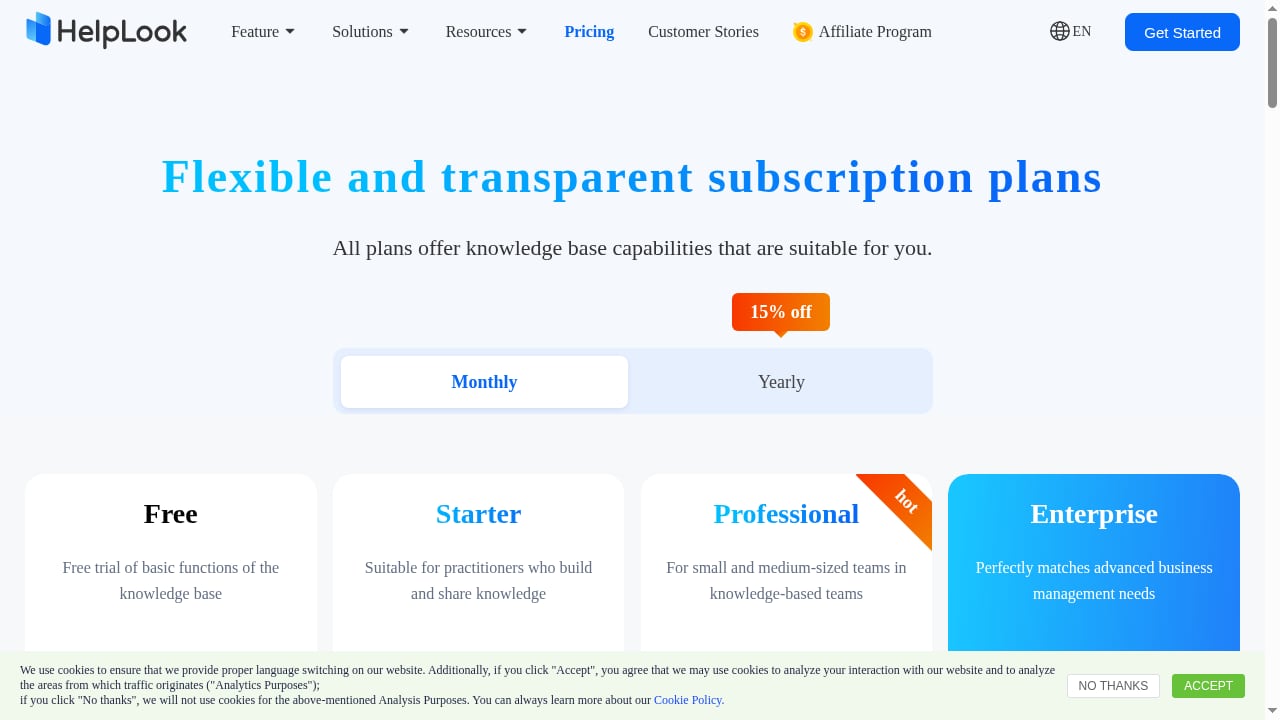
HelpLook is an all-in-one AI-powered platform for knowledge bases, help desks, and self-service portals. It includes a Portal for content creators, a Site for customers and employees, a Widget for embedding into web pages and apps, and HelpLook AI for search and support assistance. It is low-code and ready to use, with a free tier and paid plans starting at $19/month for Starter and $59/month for Professional.
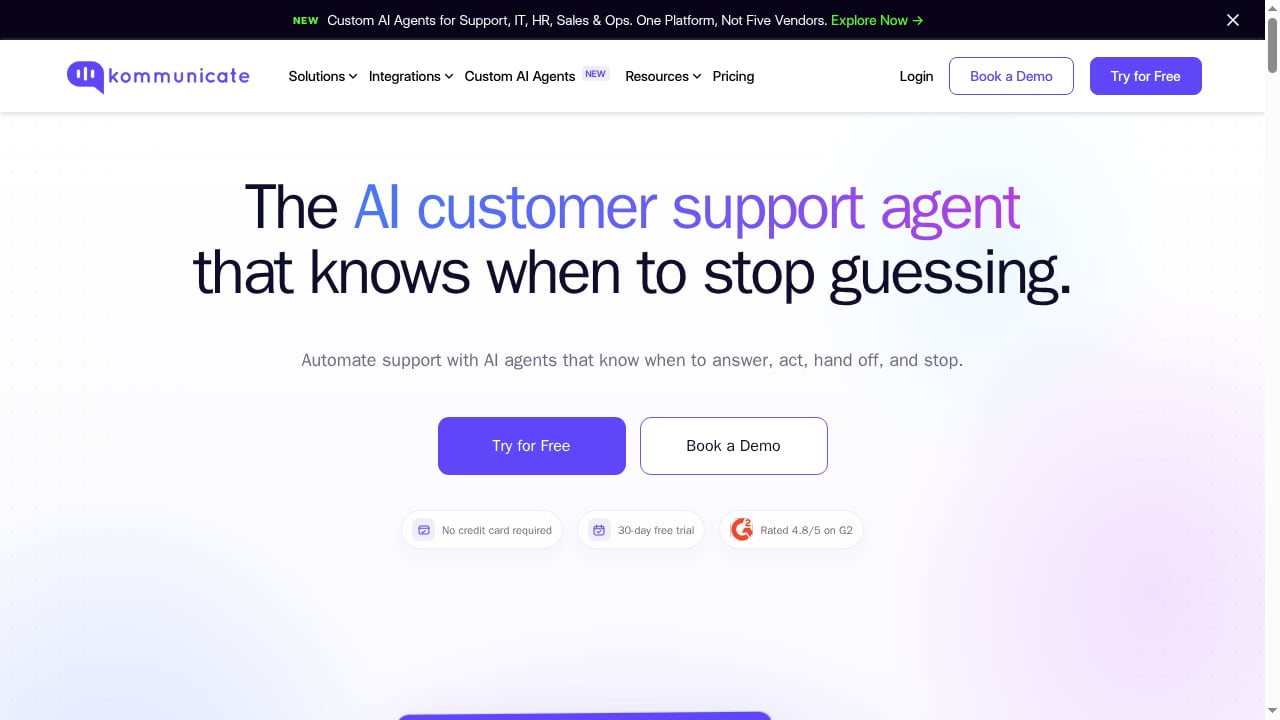
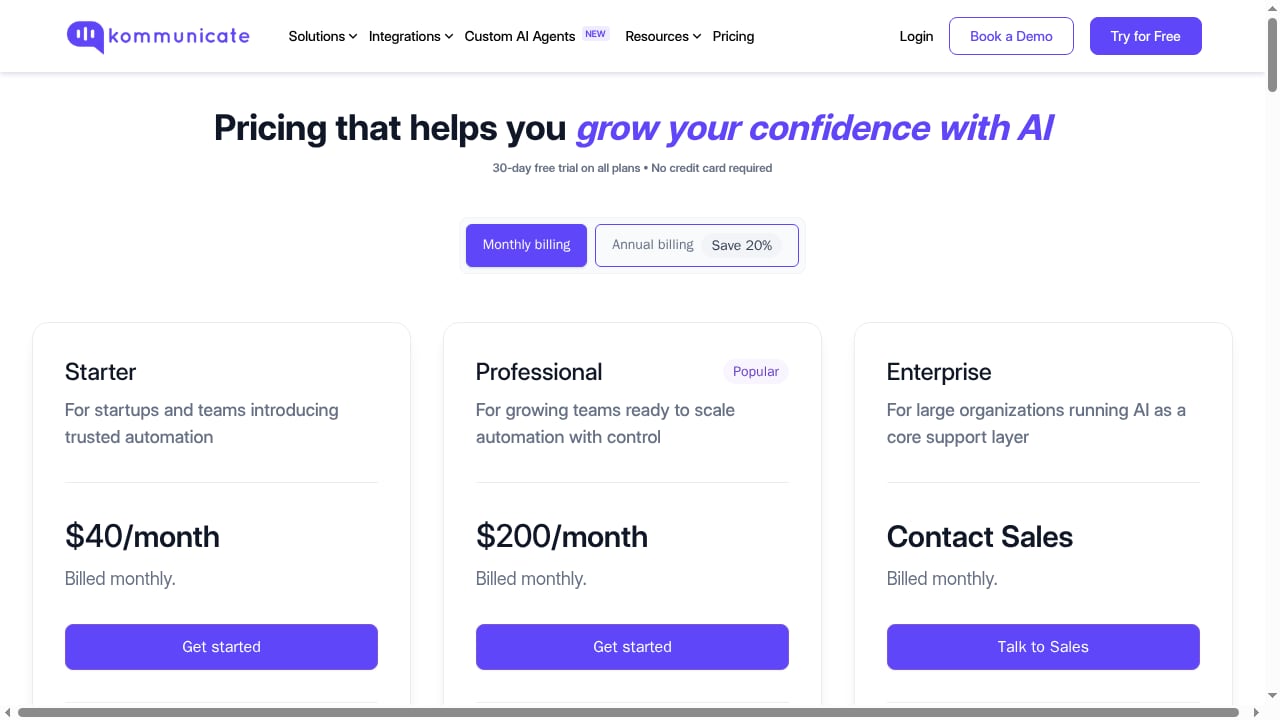
Kommunicate is an AI customer service automation platform. Its AI agents resolve queries across chat, email, WhatsApp, and voice, and it supports seamless handoff between AI and human agents for complex issues.
Put simply: HelpLook is the source of truth, and Kommunicate is the delivery layer. HelpLook answers "what is correct?" Kommunicate answers "where and how does the customer get it?"
| Capability | HelpLook | Kommunicate |
|---|---|---|
| Primary role | Knowledge base, help desk, self-service portal | AI customer service automation and omnichannel engagement |
| Content creation | Portal editor, AI-assisted writing, SEO-friendly sites | Not its focus |
| Channels | Embedded widget and hosted help site | Chat, email, WhatsApp, voice |
| AI behavior | Answers grounded in your documents | Resolves queries and routes to humans |
| Best for | Centralizing and maintaining answers | Automating conversations at scale |
How the two platforms work together
First viewport screenshot of www.kommunicate.io.
A healthy integration follows a simple loop:
- Author once in HelpLook. Write FAQs, troubleshooting steps, product manuals, and policies in HelpLook. Use clear headings and short paragraphs, because both human readers and AI retrieval work better with structured content.
- Expose the knowledge to Kommunicate. Connect Kommunicate's AI agent to the HelpLook content through the integration method your plan supports, such as a synced knowledge source, an API-based retrieval, or a HelpLook site URL that the AI can index.
- Resolve conversations in Kommunicate. Customers ask questions on chat, email, WhatsApp, or voice. The AI agent retrieves the relevant HelpLook article and answers.
- Escalate when needed. When confidence is low or the issue is sensitive, Kommunicate hands the conversation to a human agent, who can use HelpLook as the reference desk.
- Feed gaps back. Tag unanswered or escalated questions, then update HelpLook. The next conversation benefits immediately.
This is the same pattern used in other knowledge-plus-automation pairings, such as the HelpLook and eesel AI workflow, where the knowledge base stays authoritative and the automation layer handles delivery.
Setup: connecting HelpLook and Kommunicate
First viewport screenshot of www.helplook.com.
Exact menus and connector names change as both products evolve, so treat these as workflow steps rather than a fixed click path.
Step 1: Prepare your HelpLook knowledge base
Before connecting anything, make the content machine-readable:
- Group articles into logical collections (Getting Started, Billing, Troubleshooting).
- Give each article a descriptive title and a one-sentence summary at the top.
- Remove outdated drafts and duplicate articles.
- Add internal links between related articles so the AI can follow context.
If you are still deciding how to structure your knowledge layer, the HelpLook vs HelpSite vs Guru comparison covers AI-searchable knowledge base options.
Step 2: Choose your connection method
There are three common patterns:
- Native or marketplace connector. If Kommunicate offers a HelpLook integration in its integrations directory, use it. This is usually the fastest path.
- API-based retrieval. Use HelpLook's API to pull published articles into Kommunicate's knowledge source. This gives you control over refresh frequency and which collections are exposed.
- URL ingestion. Point Kommunicate at your public HelpLook site so its AI can crawl and index the pages. This is simple but less precise, because the crawler sees whatever is public.
For most teams, a native connector or API sync is preferable because you can exclude internal or draft content.
Step 3: Configure the AI agent in Kommunicate
- Set the agent's scope: which HelpLook collections it may answer from.
- Write a system prompt that tells the agent to answer only from the knowledge source and to say "I don't know" rather than guess.
- Define escalation rules: billing disputes, account access issues, and legal questions should route to humans.
- Enable the channels you need: chat, email, WhatsApp, and voice.
Step 4: Embed and test
Place the Kommunicate chat widget on your site, or keep the HelpLook widget for self-service browsing and use Kommunicate for conversational support. Then test with real questions from your ticket history, including ambiguous and multi-part questions.
Step 5: Monitor and iterate
Review conversations weekly. Look for three signals: questions the AI could not answer, answers that were corrected by humans, and topics that generate repeat contacts. Each signal points to a HelpLook article to create or improve.
Practical examples
Example 1: E-commerce order and returns questions
A customer asks on WhatsApp, "Can I return an item after 30 days?" Kommunicate's AI agent retrieves the returns policy from HelpLook and replies with the eligibility rules and a link to the return form. If the customer says the item arrived damaged, the agent escalates to a human and attaches the conversation context.
Example 2: SaaS onboarding and troubleshooting
A new user asks in the in-app chat why their dashboard is empty. The AI agent pulls the "Getting started" and "Data sync troubleshooting" articles from HelpLook, walks through the checklist, and links to the full guide. If the issue persists, the conversation is handed to support with the steps already attempted.
Example 3: Internal help desk
An employee asks on email how to request a new laptop. Kommunicate's agent answers from the internal HelpLook knowledge base, including the approval workflow and the request form link. This reduces repetitive HR and IT tickets without exposing internal content to customers.
Problems the combination solves
- Knowledge that never reaches customers. HelpLook content exists, but customers still ask humans. Kommunicate pushes the same answers into the channels customers already use.
- AI that invents answers. Grounding the AI agent in a curated HelpLook knowledge base reduces hallucination and gives you a single place to correct wrong information.
- Channel sprawl. Instead of maintaining separate FAQ pages, chat scripts, and WhatsApp replies, you maintain one knowledge source and let Kommunicate handle delivery.
- Escalation without context. When AI hands off to a human, the human can reference the same HelpLook article the customer saw, which shortens resolution time.
- Slow content feedback loops. Conversation analytics reveal documentation gaps, so HelpLook updates are driven by real demand rather than guesswork.
When this combination fits, and when it doesn't
First viewport screenshot of www.kommunicate.io.
Choose HelpLook plus Kommunicate when you need both a well-organized knowledge base and omnichannel AI automation, especially if WhatsApp or voice are important channels. The pairing is also a good fit for teams that want a low-code setup without building a custom RAG pipeline.
Consider alternatives if you only need a help center and no conversational automation, in which case HelpLook alone may be enough. If you are still evaluating automation vendors, the top AI customer support automation platforms comparison reviews options on automation depth, channels, and pricing.
Related reading
- HelpLook vs livepro: AI Knowledge Base vs Contact Center KMS - Compare HelpLook and livepro: AI knowledge base and help desk vs contact center knowledge management. See features, pricing, use cases, and which fits your team.
- HappyFox Review 2026: AI Help Desk Tested & Rated - Evidence-based HappyFox review for 2026: features, pricing signals, setup, strengths, limitations, and who should use this AI help desk.
Sources and further reading
- Customize and Optimize Your AI-Powered Knowledge Base - HelpLook is a tool for quickly building a free help desk and knowledge base system, providing comprehensive support and assistance for your products. Help you create product manuals, blogs, FAQs, user guides, troubleshooting, and other content without coding, solving various problems for your users. By using HelpLook, you can add SEO optimized keywords to your official product website, helping more users discover and utilize your product. The fast, simple, and free user experience allows you to focus on product development and operations without worrying about the construction of the help center and knowledge base.
- HelpLook VS Helpjuice: Comparison of Enterprise Knowledge Base Construction Tools - This blog will focus on two highly acclaimed knowledge base building tools in the market: HelpLook and Helpjuice.
- 20 AI-Driven Knowledge Management Tools in 2025 - Explore 20 AI-driven knowledge management tools that help organizations capture, process, and utilize information more effectively for better decision-making.
FAQ
Do I need a developer to connect HelpLook and Kommunicate?
Usually not. A native connector or URL ingestion requires no code. API-based retrieval may need a developer for the initial setup, but ongoing content work stays in HelpLook.
Will Kommunicate answer from internal HelpLook content?
Only if you expose that content to it. Keep internal collections out of the synced source or crawler scope, and use separate agents for customer-facing and internal support.
What happens when the AI cannot answer?
Configure escalation rules in Kommunicate so the conversation routes to a human agent with the full transcript. Then create or update the missing HelpLook article so the next customer gets an instant answer.
Can I keep the HelpLook widget and use Kommunicate at the same time?
Yes. Many teams use the HelpLook site for self-service browsing and SEO, and Kommunicate for conversational support across chat, email, WhatsApp, and voice.
How often should the knowledge sync run?
Daily is a reasonable default. If your policies change frequently, sync more often or trigger a refresh after major HelpLook updates.
Conclusion
HelpLook and Kommunicate solve different halves of the same problem. HelpLook gives you a structured, AI-ready knowledge base; Kommunicate turns that knowledge into automated conversations on the channels customers actually use. The integration is less about technology and more about discipline: keep the knowledge accurate, scope the AI tightly, escalate gracefully, and feed conversation insights back into documentation. Teams that run that loop consistently spend less time repeating answers and more time improving the product.