
How to Use HelpLook with MkDocs: Workflow & Setup
MkDocs is excellent at turning Markdown files into clean, version-controlled project documentation. HelpLook is excellent at turning that content into an AI-powered, searchable, SEO-optimized help center. Used together, they cover the full lifecycle of documentation: authoring in a Git-friendly format, then delivering it to customers with self-service search and analytics.
This article explains how the two tools complement each other, walks through a practical setup, and shows where the combination solves real problems that neither tool handles well alone.
Why combine HelpLook and MkDocs?
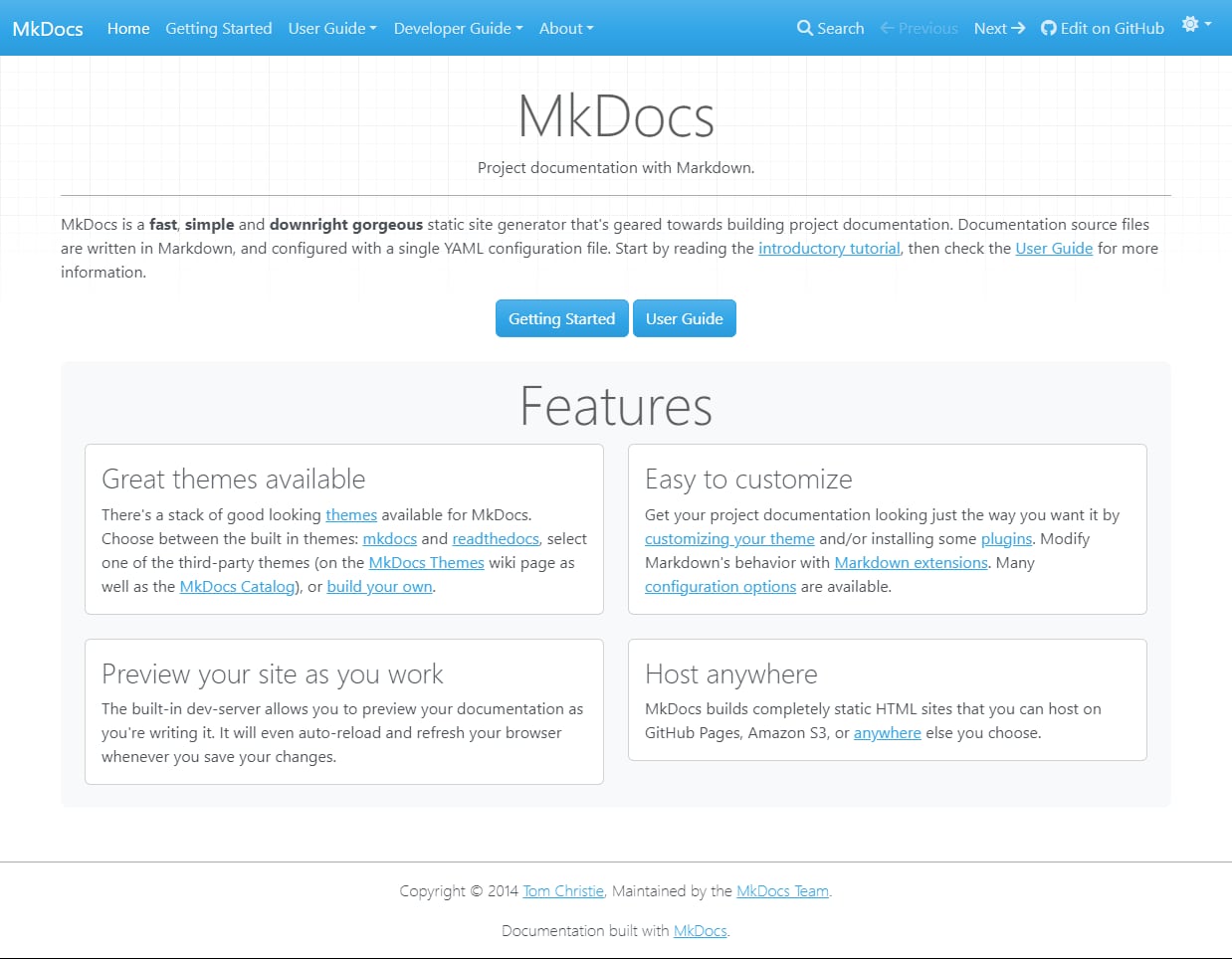
MkDocs product interface.
MkDocs is a static site generator built for project documentation. You write Markdown, configure a single mkdocs.yml file, preview changes with a live-reloading dev server, and deploy to static hosting such as GitHub Pages or Amazon S3. It is fast, simple, and popular with software teams, open-source projects, and technical writers.
HelpLook is an all-in-one, AI-powered knowledge base and help desk platform. It provides no-code content creation, AI search, SEO optimization, customizable portals, embeddable widgets, and analytics for customer-facing help centers and internal knowledge repositories.
The two tools sit at different layers of the same pipeline:
- MkDocs handles the source of truth. Developers and technical writers keep docs in Markdown, review changes in pull requests, and version everything in Git.
- HelpLook handles the delivery layer. Support teams publish that content as a branded, searchable help center with AI answers, widgets, and usage analytics.
A static MkDocs site is great for developers who read docs on a project page. It is less suited to customers who need instant answers, fuzzy search, and a support portal that looks like part of your product. HelpLook fills that gap without forcing writers to abandon Markdown.
How the workflow fits together
MkDocs product interface.
The combined workflow has four stages. Each stage uses the tool that is strongest for that job.
Stage 1: Author in MkDocs
Technical writers and developers create and maintain documentation as Markdown files inside a Git repository. A typical MkDocs project looks like this:
my-docs/
├── mkdocs.yml
├── docs/
│   ├── index.md
│   ├── getting-started/
│   │   ├── installation.md
│   │   └── quickstart.md
│   ├── api/
│   │   └── authentication.md
│   └── troubleshooting/
│       └── common-errors.md
└── .github/workflows/
    └── deploy.yml
The mkdocs.yml file controls navigation, theme, and plugins. For example:
site_name: Acme Product Docs
nav:
  - Home: index.md
  - Getting Started:
      - Installation: getting-started/installation.md
      - Quickstart: getting-started/quickstart.md
  - API:
      - Authentication: api/authentication.md
  - Troubleshooting: troubleshooting/common-errors.md
theme:
  name: material
At this stage, mkdocs serve gives writers a local preview with live reload. Nothing is published yet.
Stage 2: Build and deploy the MkDocs site
When content is ready, MkDocs builds a static site. Teams typically deploy it to GitHub Pages, Amazon S3, or another static host. A minimal GitHub Actions workflow might look like this:
name: Deploy MkDocs
on:
  push:
    branches: [main]
jobs:
  build:
    runs-on: ubuntu-latest
    steps:
      - uses: actions/checkout@v4
      - uses: actions/setup-python@v5
        with:
          python-version: '3.x'
      - run: pip install mkdocs mkdocs-material
      - run: mkdocs build
      - uses: actions/upload-pages-artifact@v3
        with:
          path: site
This gives you a developer-facing documentation site that updates on every merge.
Stage 3: Bring content into HelpLook
HelpLook is where the same content becomes a customer-facing or internal knowledge base. Depending on your plan and setup, you can:
- Import Markdown files directly. HelpLook accepts Markdown content, so the files you already maintain for MkDocs can be imported without rewriting them.
- Sync via API or integration. For teams that want automation, HelpLook supports programmatic content updates so a CI job can push new or changed articles after a successful MkDocs build.
- Paste and structure manually. For smaller teams, copying the rendered Markdown into HelpLook's no-code editor is a fast way to get started.
Once content is inside HelpLook, you organize it into collections, categories, and articles that match how customers search — not how the repository is structured.
Stage 4: Optimize and measure in HelpLook
HelpLook adds capabilities that a static MkDocs site does not provide out of the box:
- AI-powered search that understands natural-language questions, not just exact keywords.
- SEO optimization for public help centers, so articles rank in search engines.
- Customizable portals with your branding, domain, and navigation.
- Widgets you can embed in your web app or product UI.
- Analytics showing which articles are read, which searches fail, and where users drop off.
This is the feedback loop that keeps documentation useful. If analytics show that a troubleshooting article gets heavy traffic, you can improve it in MkDocs, rebuild, and republish.
Practical setup: a step-by-step example

First viewport screenshot of Online E-Commerce Product Manual Creator - HelpLook.
Here is a concrete path from an existing MkDocs project to a HelpLook-powered help center.
Step 1: Audit your MkDocs content
Not every Markdown file belongs in a customer help center. Separate content into two groups:
- Developer-facing docs: API references, architecture notes, contribution guides. These stay in MkDocs.
- Customer-facing docs: installation guides, how-tos, FAQs, troubleshooting. These go to HelpLook.
You can keep both in the same repository but publish them to different destinations.
Step 2: Standardize front matter
HelpLook and MkDocs both benefit from consistent metadata. Add front matter to each customer-facing file:
---
title: Reset Your Password
description: Steps to reset a forgotten password from the login screen.
tags: [account, security, troubleshooting]
---

# Reset Your Password

1. Open the login page.
2. Click **Forgot password**.
...
This makes imports cleaner and helps HelpLook map articles to the right categories.
Step 3: Create a HelpLook collection
In HelpLook, create a collection for your product help center. Define categories that match customer language, for example:
- Getting Started
- Account & Billing
- Integrations
- Troubleshooting
Avoid mirroring your repository folder names if they are developer-oriented. Customers search by task, not by module.
Step 4: Import or sync articles
Import your Markdown files into the matching categories. If you are syncing programmatically, run the sync as a step in your CI pipeline after mkdocs build succeeds. That way, the help center never publishes content that failed the docs build.
Step 5: Configure search, branding, and widgets
- Enable AI search so customers can ask questions in plain language.
- Apply your brand colors, logo, and custom domain.
- Embed the HelpLook widget in your product so users can search without leaving the app.
- Add SEO settings such as meta descriptions and canonical URLs for public articles.
Step 6: Close the loop with analytics
After a few weeks, review HelpLook analytics. Look for:
- Articles with high views but low completion — these may need clearer steps.
- Searches with no results — these reveal missing content.
- Support tickets that repeat questions already answered in docs — these suggest the help center needs better placement or search tuning.
Feed those findings back into the MkDocs repository, then rebuild and resync.
Where the combination solves real problems
Problem 1: Docs-as-code tools are not customer support tools
MkDocs is designed for maintainable documentation, not for support workflows. It has no built-in ticketing, no AI answer engine, and no analytics on customer search behavior. HelpLook adds those without asking writers to leave Markdown.
Problem 2: Support teams cannot easily edit Git repositories
Support and success teams often need to fix a typo or clarify a step immediately. Making them open a pull request is slow. With HelpLook, they can edit published articles in a no-code editor while engineers keep the canonical source in Git. You can decide which direction is authoritative — some teams treat MkDocs as the source and HelpLook as the delivery layer, while others let HelpLook become the source for customer-facing content.
Problem 3: Static sites are hard to search well
A default MkDocs theme offers basic search. It does not understand questions like "why is my API key rejected" unless the exact words appear. HelpLook's AI search is built for that kind of query.
Problem 4: No feedback loop from readers to writers
Static documentation gives you little insight into what readers actually do. HelpLook analytics show which articles help and which searches fail, giving writers evidence for what to improve next.
Decision guidance: when to use each tool
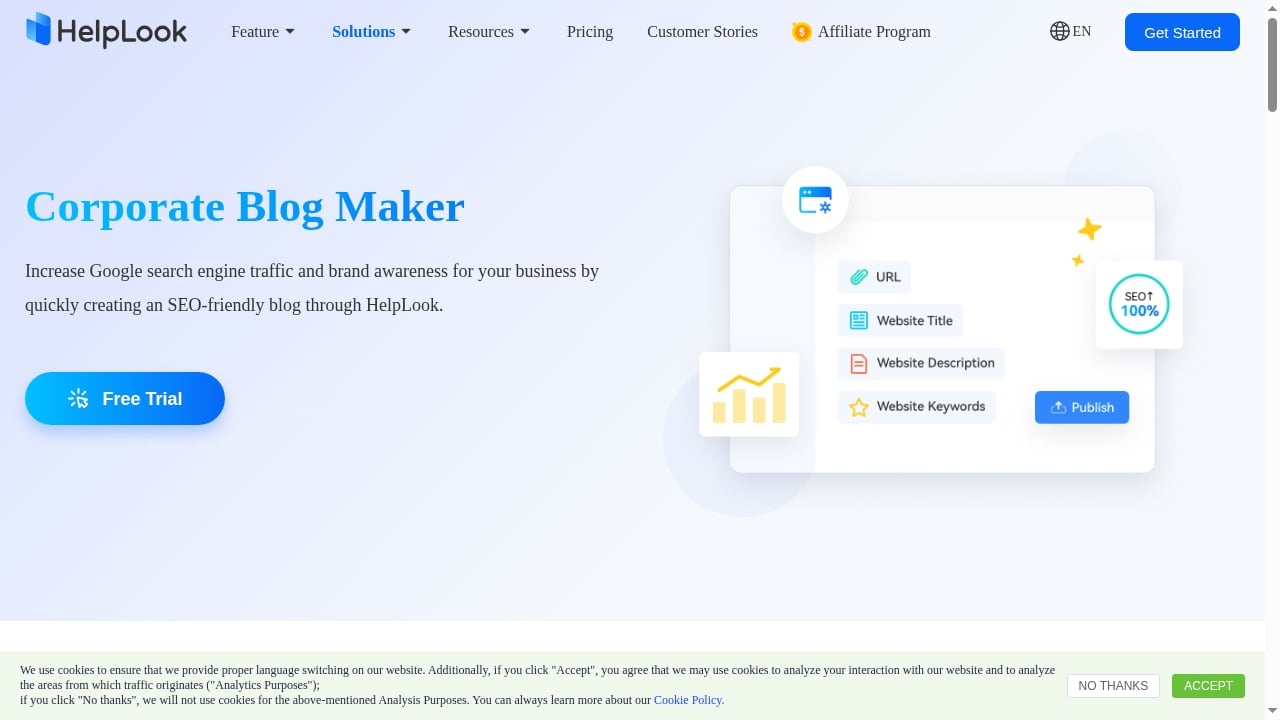
First viewport screenshot of Create a Custom Enterprise Blog with Blogging Software - HelpLook.
| Need | Best tool |
|---|---|
| Version-controlled Markdown docs for developers | MkDocs |
| API reference and architecture documentation | MkDocs |
| Customer-facing help center with AI search | HelpLook |
| Internal knowledge base with no-code editing | HelpLook |
| SEO-optimized public articles | HelpLook |
| Embeddable in-product help widget | HelpLook |
| Static hosting on GitHub Pages or S3 | MkDocs |
If your team is small and only needs developer documentation, MkDocs alone may be enough. If you need customer self-service, AI answers, and analytics, HelpLook becomes the delivery layer. If you need both, the combined workflow described above is the most practical approach.
For teams comparing broader platform options, it helps to see how HelpLook stacks up against alternatives. See the comparison of HelpLook vs Docsie vs Archbee for knowledge portals and the head-to-head HelpLook vs Archbee breakdown. If your priority is self-hosted internal documentation, the roundup of self-hosted enterprise wiki software is a useful reference.
Related reading
- KnowledgeOwl Review 2026: Reliable Knowledge Base Software? - Evidence-based KnowledgeOwl review covering ideal users, use cases, strengths, limitations, pricing, setup, and decision criteria for 2026.
- Top 10 Customer Service AI Platforms 2026: Ranked & Reviewed - Compare the top 10 customer service AI platforms for 2026. Evidence-based rankings, pricing, strengths, limits, and a practical buyer's checklist.
Sources and further reading
- Top 10 AI Docs Generators to Create Documentations Beautifully - Explore the top 10 AI-powered and open-source documentation tools designed to simplify creating, managing, and maintaining high-quality API and project documentation. Discover features and benefits of tools like Apidog, Docusaurus, MkDocs, and more to find the best fit for your team.
- Collect Secrets - LoopDocs - Progress: Step 2 of 7
FAQ
Can I use MkDocs and HelpLook at the same time?
Yes. Many teams keep MkDocs as the authoring and version-control layer for developer documentation, and use HelpLook as the customer-facing help center and internal knowledge base. The two tools serve different audiences and can share the same Markdown source.
Do I need to rewrite my MkDocs content for HelpLook?
No. HelpLook accepts Markdown, so existing MkDocs files can be imported. You may want to adjust front matter, headings, and categories so articles match how customers search.
Which tool should be the source of truth?
For developer-facing docs, MkDocs is usually the source of truth because it lives in Git and goes through code review. For customer-facing help content, some teams let HelpLook be the source of truth because support teams edit it directly. Choose one direction and document it so content does not drift.
Can I automate publishing from MkDocs to HelpLook?
Yes, if your HelpLook plan supports API or integration-based content updates. A common pattern is to run the sync as a CI step after mkdocs build succeeds, so only validated content reaches the help center.
Does HelpLook replace MkDocs?
No. MkDocs is a static site generator for project documentation; HelpLook is an AI-powered knowledge base and help desk platform. They solve different problems and work well together.
What about SEO for MkDocs sites?
MkDocs can produce SEO-friendly static HTML, but you manage meta tags, sitemaps, and structured data yourself. HelpLook includes SEO optimization features for public help centers, which reduces the manual work.
Conclusion
MkDocs and HelpLook are complementary, not competing. MkDocs gives technical teams a fast, Git-friendly way to write and version documentation. HelpLook turns that content into an AI-powered, searchable, branded help center with analytics and SEO. The workflow is straightforward: author in MkDocs, build and deploy the static site, import or sync customer-facing content into HelpLook, then use analytics to improve the source.
Start by auditing your MkDocs content, separating developer docs from customer help articles, and importing one collection into HelpLook. Once the loop is running, you get the best of both worlds: docs-as-code discipline for writers and self-service support for customers.