
How to Use HelpLook with ReadMe: Unified Docs Workflow
Your API reference and your help center usually live in different tools, which means developers bounce between them and support teams answer the same questions twice. Combining HelpLook with ReadMe gives you one connected documentation experience: ReadMe handles the interactive API reference, and HelpLook powers the searchable knowledge base around it.
This article explains how the two platforms work together, how to set up the workflow, and what problems the combination solves.
Why combine HelpLook and ReadMe?
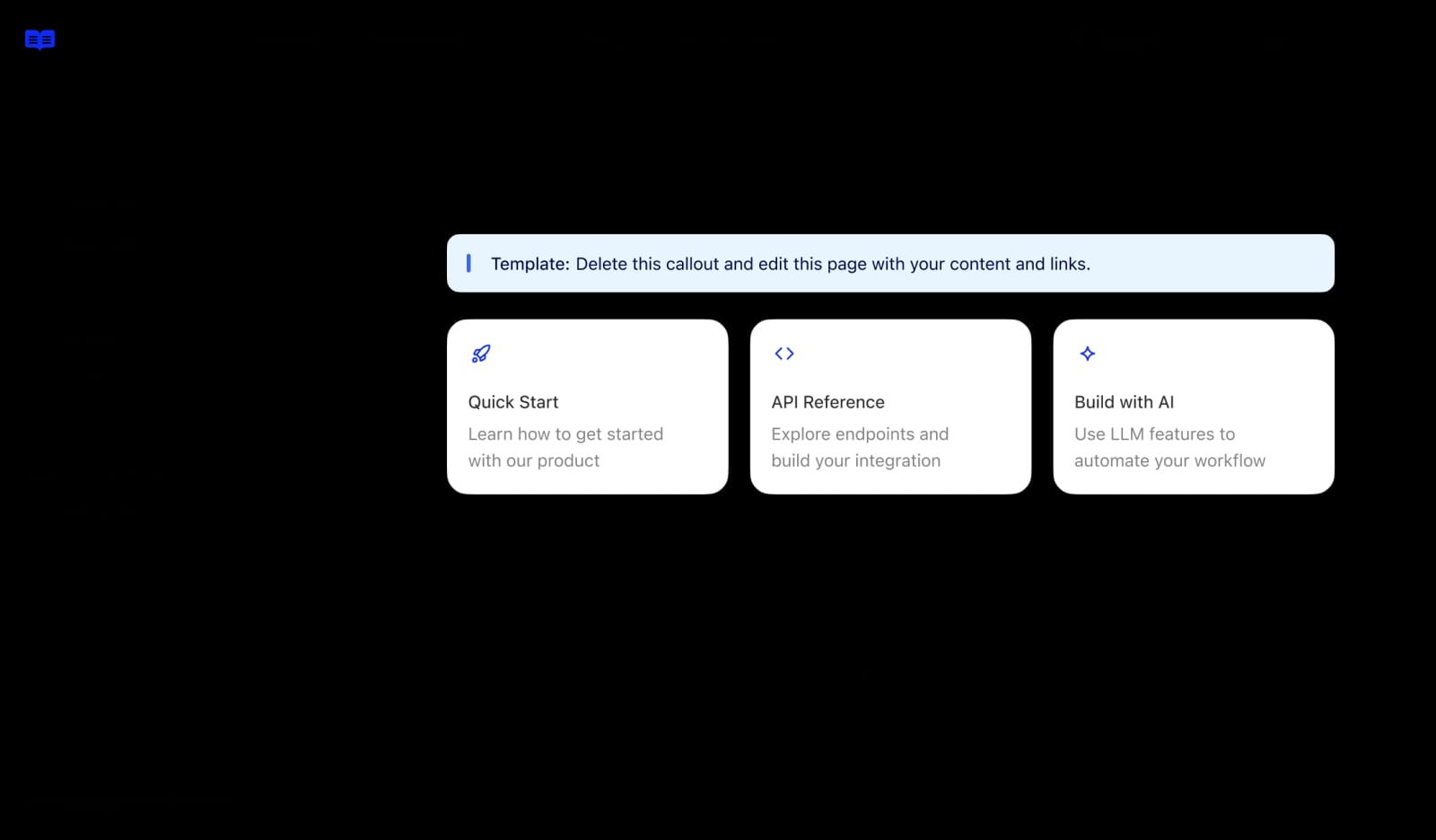
ReadMe product interface.
ReadMe is built for developer-facing API documentation. It offers an interactive API reference with a Try It playground, a Markdown editor, customizable themes, bi-directional Git sync, an AI writing assistant, version control, and analytics.
HelpLook is an AI-powered knowledge base and help desk platform. It lets teams build customer-facing help centers, internal knowledge bases, product manuals, FAQs, and troubleshooting content without code. Its strengths are AI search, no-code content creation, SEO optimization, customizable portals, and analytics.
The two tools solve different halves of the same problem:
- ReadMe answers "How does this endpoint work?"
- HelpLook answers "How do I accomplish this task with your product?"
When you connect them, developers get a single journey: they read the API reference, then follow a task-based guide that uses that API in context.
How the two platforms complement each other
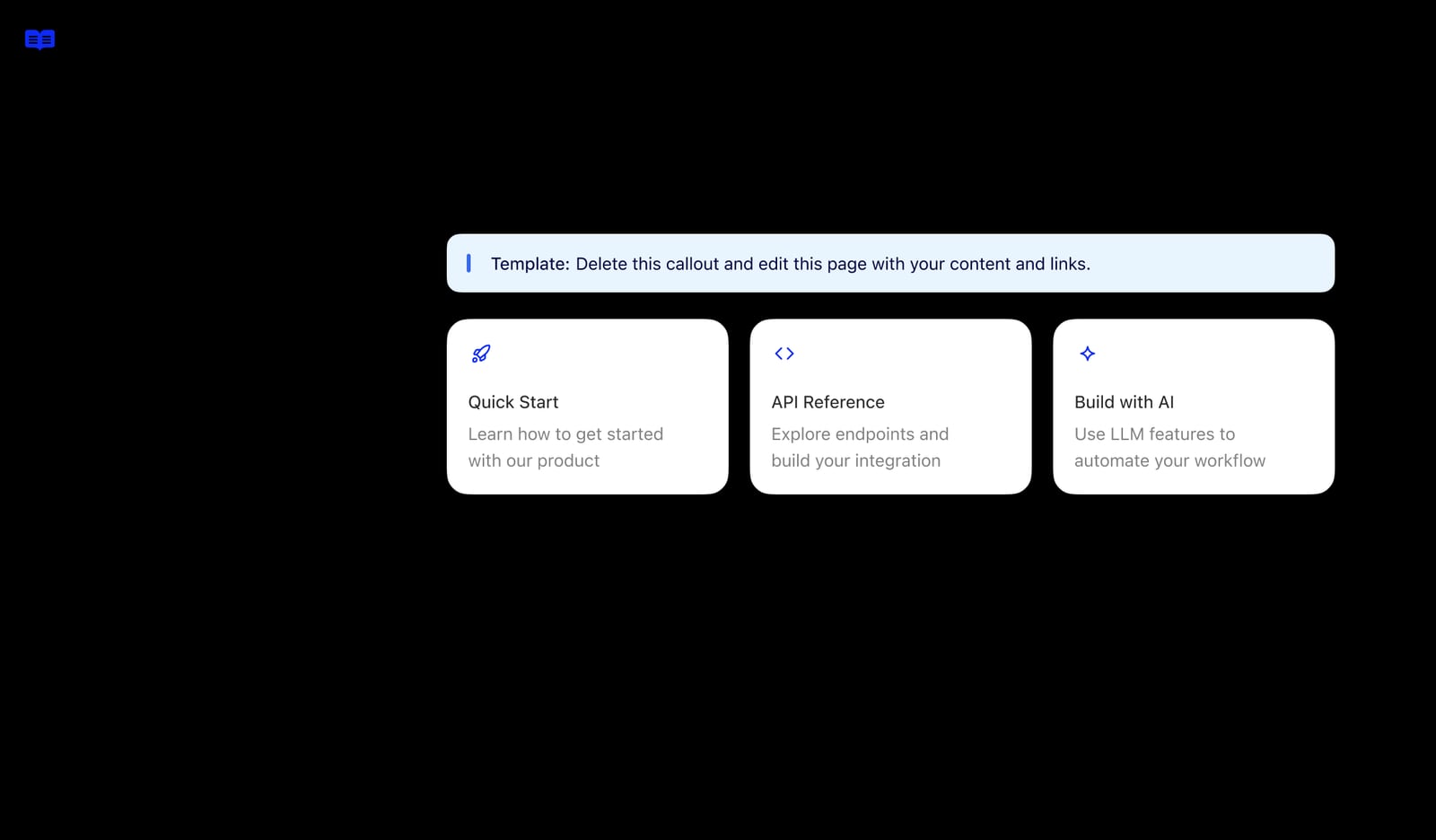
ReadMe product interface.
| Layer | ReadMe | HelpLook |
|---|---|---|
| Primary audience | Developers integrating an API | End users, support teams, internal staff |
| Content type | API reference, changelogs, developer hub | Help center, FAQs, guides, troubleshooting |
| Editing model | Markdown, Git sync, branch collaboration | No-code editor, AI-assisted creation |
| Search | Documentation search within developer hub | AI-powered search across the knowledge base |
| SEO | Developer-focused landing pages | SEO-optimized help center pages |
| Analytics | API usage and doc engagement | Knowledge base search and article performance |
The overlap is intentional. ReadMe is where technical accuracy lives; HelpLook is where discoverability and self-service live.
The workflow: from API reference to self-service answer
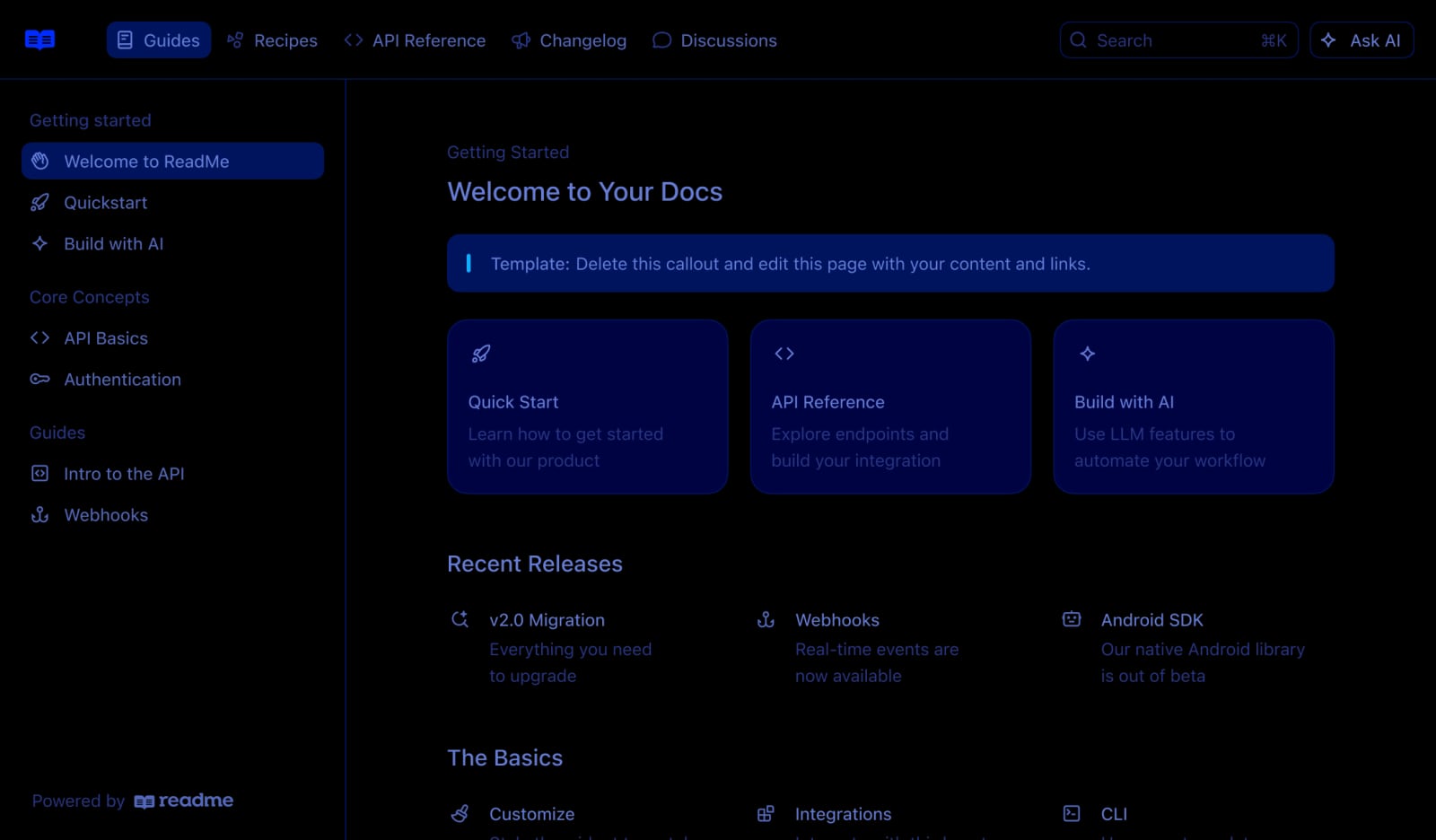
ReadMe product interface.
A practical workflow looks like this:
- Document the API in ReadMe. Write endpoints, parameters, authentication details, and code samples. Use the Try It playground so developers can test calls directly.
- Identify task-based questions. Review support tickets, chat logs, and search queries to find the tasks users struggle with, such as "How do I connect my account?" or "Why is my webhook failing?"
- Write the task guide in HelpLook. Create a step-by-step article that references the relevant ReadMe endpoint. Link to the ReadMe page for the technical details instead of duplicating them.
- Connect the two surfaces. Add a link from the HelpLook article to the ReadMe reference, and add a link from the ReadMe page to the HelpLook guide for the broader workflow.
- Enable AI search in HelpLook. Let users search in natural language and get an answer that points to both the guide and the API reference.
- Track and refine. Use HelpLook analytics to see which articles get searched but not read, and ReadMe analytics to see which endpoints get the most traffic. Update both based on real usage.
Setup steps
Step 1: Prepare your ReadMe developer hub
Make sure your API reference is complete and stable. Key endpoints should have working examples, and your changelog should be current. ReadMe's bi-directional Git sync means your docs can stay aligned with your codebase.
Step 2: Build the HelpLook knowledge base structure
Create categories that match how users think about your product, not how your API is organized. For example:
- Getting started
- Account and billing
- Integrations
- Troubleshooting
- API and developer tools
This structure makes AI search more effective because it gives the system clear context.
Step 3: Write task-based articles that reference ReadMe
Each article should answer one question and link to the relevant ReadMe page. For example, an article titled "How to set up a webhook" would explain the steps in plain language, then link to the ReadMe endpoint reference for the exact payload format.
Step 4: Add cross-links in both directions
In HelpLook, link to ReadMe pages using descriptive anchor text. In ReadMe, add a "Need help?" link back to the relevant HelpLook guide. This creates a loop that keeps users moving forward instead of searching elsewhere.
Step 5: Configure search and widgets
HelpLook supports widgets that can be embedded in web pages and applications. Place the HelpLook search widget where developers already work, such as your dashboard or developer portal, so they can find guides without leaving the product.
Step 6: Set up a review cycle
Because APIs change, schedule regular reviews. When an endpoint changes in ReadMe, check whether any HelpLook article references it. A simple quarterly audit prevents stale instructions.
Practical examples
Example 1: Onboarding a new API user
A developer signs up and lands on your ReadMe developer hub. They read the authentication section, then click a link to a HelpLook guide titled "Your first API call in 10 minutes." The guide walks them through creating a key, making a test request, and interpreting the response. They never need to open a support ticket.
Example 2: Troubleshooting a failed integration
A user's webhook stops working. They search your HelpLook help center for "webhook not firing." The AI search returns a troubleshooting article that explains common causes and links to the ReadMe webhook reference for payload details. The user fixes the issue without contacting support.
Example 3: Internal knowledge for support teams
Your support team uses HelpLook as an internal knowledge base. When a developer asks a technical question, the agent can search HelpLook for the answer and link the customer to the relevant ReadMe page. This reduces escalation time and keeps answers consistent.
Problems this combination solves
- Fragmented documentation. Users no longer need to guess whether the answer is in the API docs or the help center.
- Duplicate content. Task guides live in HelpLook, technical reference lives in ReadMe, and each links to the other instead of repeating.
- Support ticket volume. Self-service search deflects common questions before they become tickets.
- Slow onboarding. New developers follow a clear path from first API call to full integration.
- Stale instructions. A defined review cycle keeps both surfaces aligned with product changes.
When to use HelpLook, ReadMe, or both
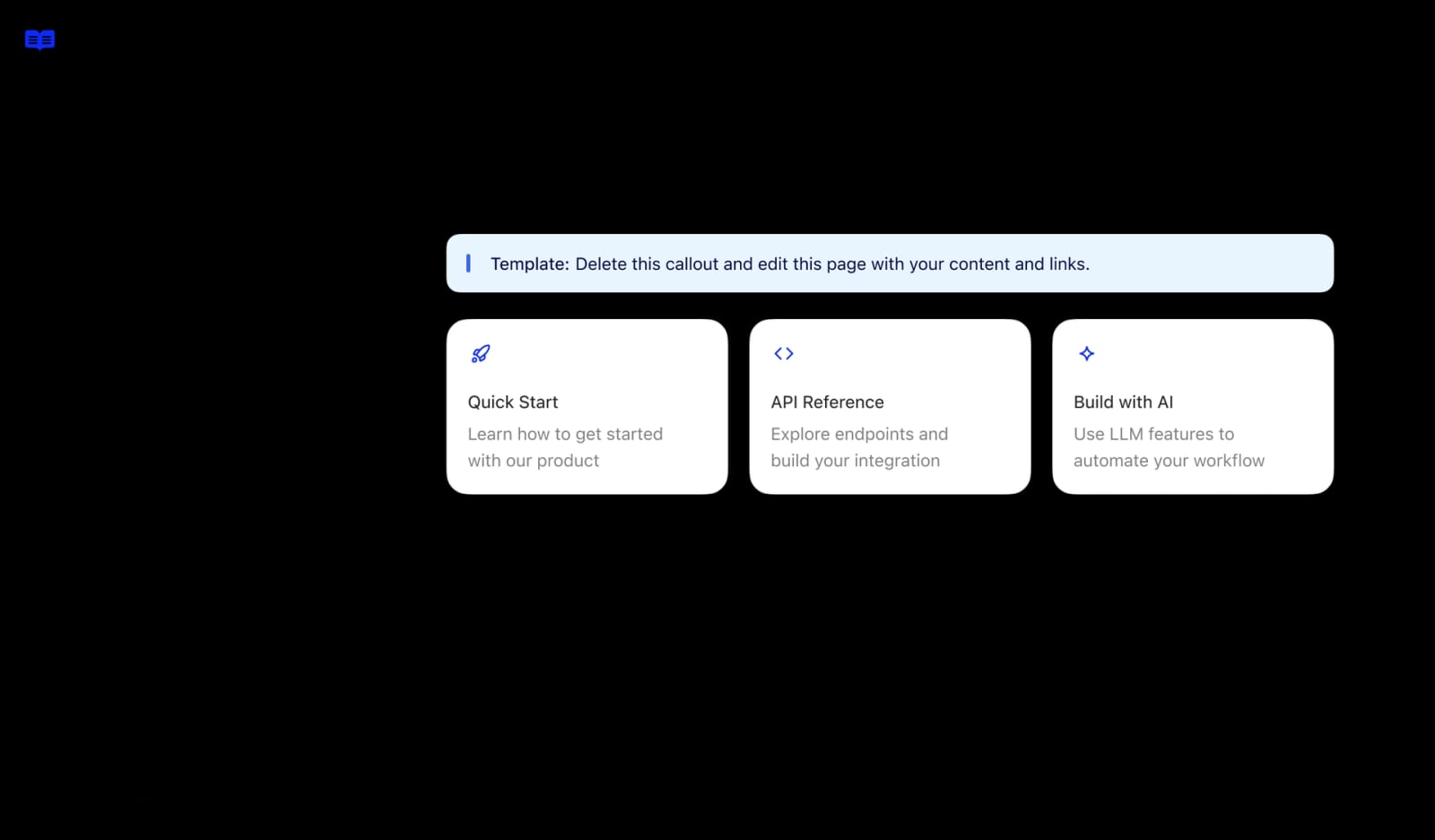
ReadMe product interface.
- Use ReadMe alone if your audience is purely developers and your product is primarily an API.
- Use HelpLook alone if your audience is end users and you do not have a public API.
- Use both if you have a developer audience and a broader user base. This is common in SaaS, fintech, and platform products where the API is one part of a larger product experience.
If you are evaluating knowledge platforms more broadly, see our comparison of HelpLook vs GitBook and our roundup of the top knowledge portal platforms.
Related reading
- HelpLook vs Docsie vs TeamSupport: Best Knowledge Platform 2026 - Compare HelpLook, Docsie, and TeamSupport for AI knowledge bases, documentation, and B2B support. Find the best fit for your team in 2026.
- HelpLook vs GitBook: AI Knowledge Base Comparison 2026 - Compare HelpLook and GitBook for AI knowledge bases in 2026: AI search, no-code help centers, docs-as-code, SEO, pricing signals, and who each fits.
- TeamSupport Review 2026: B2B Support Pricing & Verdict - Evidence-based TeamSupport review for 2026: account-level B2B support, Distress Index health scoring, AI add-ons, real pricing tiers, setup, and limits.
Sources and further reading
- helm-secrets/README.md at master · zendesk/helm-secrets - DEPRECATED A helm plugin that help manage secrets with Git workflow and store them anywhere - zendesk/helm-secrets
- Readme Badges GitHub: Best Practices - Learn the best practices for using GitHub readme badges, understanding their importance for project visibility, selecting relevant badges, customizing badge appearance, and automating badge updates.
- The 5-layer prompt framework that makes ChatGPT output feel like it came from a paid professional : r/PromptEngineering - After months of testing, I realized that 90% of bad ChatGPT outputs come from the same problem: we write prompts like Google searches instead of project briefs.
FAQ
Can HelpLook and ReadMe share content automatically?
There is no native one-click sync between the two platforms. The practical approach is to keep technical reference in ReadMe and task-based guides in HelpLook, then cross-link them. This avoids duplication and keeps each tool focused on what it does best.
Which tool should own the API reference?
ReadMe. Its interactive API reference, Try It playground, and Git sync are built for that purpose. HelpLook is better suited for the surrounding guides, FAQs, and troubleshooting content.
How do I avoid duplicate content between the two?
Define a clear rule: if it describes an endpoint, parameter, or payload, it belongs in ReadMe. If it describes a task, workflow, or troubleshooting step, it belongs in HelpLook. Link across instead of copying.
Does this combination help with SEO?
Yes. HelpLook pages can be optimized for search engines, which helps task-based queries rank. ReadMe pages tend to rank for developer-specific queries. Together they cover more search intent.
What if I already use another knowledge base?
If you are comparing options, our HelpLook vs Docsie vs TeamSupport comparison covers how different platforms handle AI knowledge bases and support workflows.
Conclusion
HelpLook and ReadMe solve complementary problems. ReadMe gives developers an accurate, interactive API reference. HelpLook gives everyone else a searchable, AI-powered knowledge base that answers real questions. Connected with clear cross-links and a shared review cycle, they reduce support tickets, speed up onboarding, and keep documentation useful as your product changes.
Start by mapping your existing content to the right platform, then build the links between them. The workflow is simple, and the payoff is a documentation experience that works for both developers and end users.