
How to Use HelpLook with Product Fruits: Setup & Workflow
Product Fruits gets new users moving inside your app with tours, checklists, and in-app help. HelpLook gives them — and your support team — a searchable, AI-powered knowledge base that answers questions at any depth. Used together, the two tools cover the full journey from first login to long-term self-service, without either team rebuilding the other's work.
This guide explains how the pairing works, how to set it up step by step, and what it solves that neither product handles alone.
Why combine HelpLook and Product Fruits?
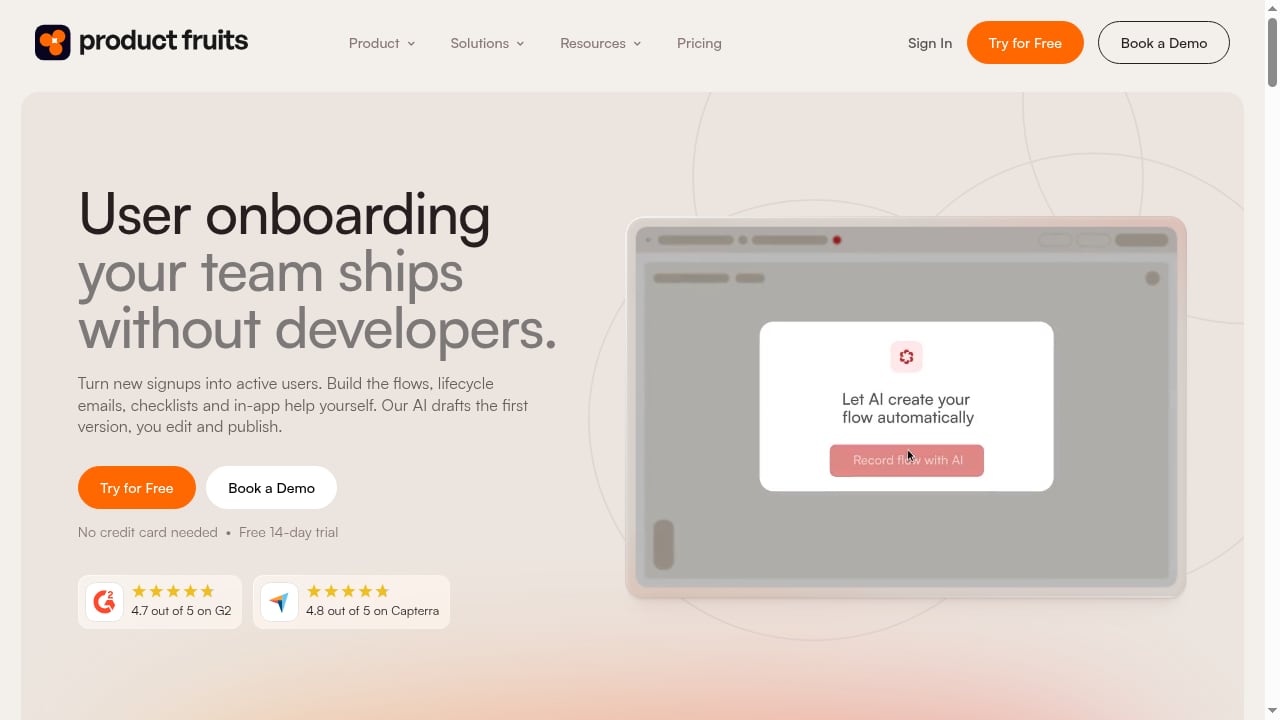
First viewport screenshot of User Onboarding & Product Adoption Platform | Product Fruits.
Most SaaS teams hit the same wall: onboarding content lives in one tool, documentation lives in another, and support tickets fall between them. Product Fruits is built for the moment of action — a tooltip on a new feature, a checklist for account setup, a survey after a milestone. HelpLook is built for the moment of explanation — a help center article, an AI answer, a policy page, a release note.
When you connect them, you get a layered support experience:
- In-app guidance (Product Fruits) handles the "what do I click next?" questions.
- AI knowledge base (HelpLook) handles the "why does this work this way?" and "what are my options?" questions.
- Support teams spend less time on repeat questions because both layers deflect them.
Product Fruits reports outcomes such as a 30% reduction in support tickets and a 70% reduction in user churn for customers that invest in onboarding. HelpLook's value proposition centers on reducing customer service costs through self-service and AI Q&A. The overlap is the point: onboarding prevents confusion, and documentation resolves what remains.
How the two products divide the work
A simple mental model helps teams avoid duplicating content.
| Layer | Tool | Best for | Example |
|---|---|---|---|
| In-app guidance | Product Fruits | Step-by-step actions, feature adoption, announcements | A tour that walks a new admin through inviting teammates |
| Self-service knowledge | HelpLook | Reference answers, how-to articles, policies, AI Q&A | An article explaining permission roles and how to change them |
| Escalation | Your help desk | Complex or account-specific issues | A billing dispute that needs a human |
Product Fruits also offers public and private knowledge bases and a conversational support copilot, so some overlap is inevitable. The cleanest split is usually to keep product tours, checklists, announcements, and surveys in Product Fruits, and keep long-form documentation, AI search, and the public help center in HelpLook. If you prefer a single source of truth for articles, link Product Fruits help widgets to HelpLook pages rather than maintaining two article libraries.
Prerequisites before you start
First viewport screenshot of Product Fruits pricing | Plans for every stage of growth.
- A HelpLook workspace with at least one published knowledge base and a few articles.
- A Product Fruits account with your application connected and the widget installed.
- Admin access to both platforms.
- Agreement on which team owns which content type (usually product or customer success for tours, support or docs for articles).
Step-by-step setup

First viewport screenshot of www.helplook.net.
Step 1: Build the HelpLook knowledge base first
Start with the content that answers your most common support questions. In HelpLook, create a knowledge base, organize it into categories (for example, Getting Started, Account & Billing, Integrations, Troubleshooting), and write or import your first articles using the rich text or Markdown editor.
Two settings matter most for this workflow:
- AI search and Q&A. Enable the AI chatbot so users can ask natural-language questions instead of browsing categories. HelpLook integrates with GPT-3.5/4.0 and Wenxin Yiyan for this.
- The embeddable widget. HelpLook provides a JavaScript widget that places the knowledge base or AI chatbot inside any website or application. You will reuse this in Product Fruits.
If you are still choosing a knowledge platform, the top AI knowledge management platforms comparison covers how authoring, AI search, and governance differ across options.
Step 2: Map onboarding moments to articles
List the milestones in your Product Fruits onboarding flow — signup, first project, first integration, first invite, first upgrade. For each milestone, identify the one or two HelpLook articles a stuck user would need.
Example mapping for a project management SaaS:
- Tour step "Create your first project" → HelpLook article "Project templates explained"
- Checklist item "Invite a teammate" → HelpLook article "Roles and permissions"
- Announcement "New reporting dashboard" → HelpLook article "How to build a report"
This mapping is what turns a tour into a support system. A user who clicks away from a tooltip still has somewhere to go.
Step 3: Add HelpLook links inside Product Fruits experiences
In Product Fruits, open the tour, checklist, or announcement you want to enrich. Add a button or link that points to the relevant HelpLook article URL. Keep the label action-oriented — "Read the permissions guide" rather than "Learn more" — so users know what they are opening.
For deeper questions, link to the HelpLook AI chatbot page or open the HelpLook widget in a new tab. Because HelpLook supports multi-language content, the same link can serve localized audiences if you publish translated articles.
Step 4: Embed HelpLook's widget alongside Product Fruits
Both products use a JavaScript snippet, so install order matters. Load the Product Fruits widget as you normally would, then add the HelpLook embed code. Test in a staging environment first.
Practical checks:
- The HelpLook launcher and Product Fruits launcher do not overlap visually.
- The HelpLook chatbot opens above your app's modals, not behind them.
- Product Fruits tours still advance correctly when the HelpLook widget is present.
- Mobile layouts keep both entry points reachable.
If you need a lighter touch, skip the persistent HelpLook launcher and rely on links inside Product Fruits, keeping only the AI chatbot available from your help menu.
Step 5: Route feedback back into content
Product Fruits surveys and feedback widgets capture where users struggle. HelpLook's analytics show which articles are read and which searches return nothing. Review both monthly.
A simple loop:
- A Product Fruits survey shows confusion at the "connect an integration" step.
- Check HelpLook analytics for related searches with no results.
- Write or update the article.
- Update the Product Fruits tour link to point to the improved page.
This is the compounding part of the workflow: onboarding data tells you what documentation is missing, and documentation reduces the load on onboarding.
A practical example: reducing trial drop-off
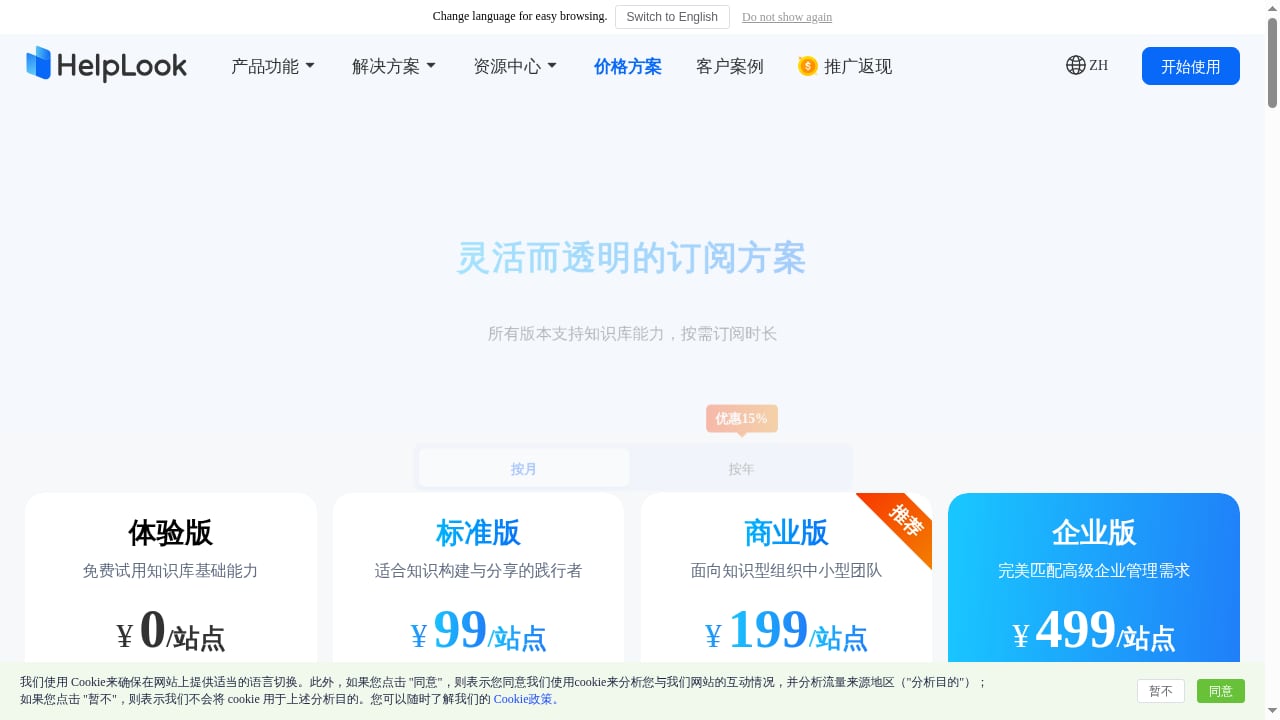
First viewport screenshot of www.helplook.net.
Imagine a B2B analytics product with a 14-day trial. New users sign up, see an empty dashboard, and leave.
Before the integration: Support answers the same five setup questions by email. The help center exists but is disconnected from the product. Trial conversion is weak.
After the integration:
- Product Fruits runs an adaptive onboarding flow that shows a sample dashboard and a three-step checklist: connect data, build a chart, invite a teammate.
- Each checklist item links to a HelpLook article with screenshots and a short video.
- The HelpLook AI chatbot is available in the corner for questions the tour does not cover, such as "Can I connect a PostgreSQL database?"
- A Product Fruits survey after day three asks what blocked progress; answers feed the next documentation sprint.
The result is not magic, but it is measurable: fewer repeat tickets, more users reaching the activation milestone, and a documentation backlog driven by real behavior instead of guesses.
Where the combination falls short
Be realistic about limits.
- Two tools, two content libraries. Without discipline, you will write the same answer twice. Assign ownership.
- Widget conflicts. Two launchers can clutter the interface. Decide which is primary on which screen.
- AI accuracy depends on content. HelpLook's AI answers are only as good as the articles behind them. Thin documentation produces thin answers.
- Not a help desk. Neither tool replaces ticketing for account-specific or escalated issues. If you are evaluating that layer, see the Zendesk review for how a full help desk compares.
Decision guidance: is this pairing right for you?
Choose HelpLook plus Product Fruits when:
- You have a SaaS product with a self-serve trial or freemium motion.
- Onboarding and documentation are owned by different people who need separate tools.
- You want in-app guidance and AI self-service without engineering work for every change.
- You need a public help center for SEO and a private knowledge base for internal teams.
Consider a simpler setup when:
- Your product is small enough that one tool's knowledge base covers both onboarding and reference content.
- You have no dedicated documentation owner and cannot maintain two content sets.
- Your support volume is low and email is still sufficient.
If you are comparing knowledge base options more broadly, the HelpLook vs DocsBot comparison and the HelpLook vs Hesk vs Korra comparison show where AI knowledge bases differ from help desk and on-premise tools.
Related reading
- ProProfs Knowledge Base Review 2026: AI Help Center Tested - Evidence-based ProProfs Knowledge Base review: AI features, pricing signals, setup, limitations, and who it fits in 2026.
Sources and further reading
- Renew Resurfacing Night Serum - Renew corrects & enhances by supporting gentle exfoliation to help clear away dull surface skin and reduce the appearance of aging – while also hydrating for a refreshed appearance. Renew is designed to leave skin looking plump, clear, and visibly smooth for a radiant complexion.
- Change Your Diet to Help Look After Your Skin Following Laser Treatments | LSW - Eat Healthier for Glowing Skin After you’ve had laser rejuvenation or laser resurfacing treatments, your skin care practitioner will tell you how important it
- For Your Benefit Newsletter - Washington State Health Care Authority - Eat a heart-healthy diet:Including fruits, vegetables, whole grains, legumes ... • Vaccines use your body's immune system to protect you. When exposed ...
Frequently asked questions
Do HelpLook and Product Fruits have a native integration?
There is no single-click native integration described in either product's public materials. The practical integration is link-based and embed-based: Product Fruits experiences link to HelpLook articles, and both widgets run on the same page. This is how most teams combine them today.
Which tool should own the knowledge base?
If your priority is AI search, public help center SEO, and long-form documentation, HelpLook should own the article library. Product Fruits' knowledge base features are better used for short in-app help content tied to specific flows. Avoid maintaining full duplicate libraries.
Can I use HelpLook's AI chatbot inside Product Fruits tours?
Yes, indirectly. Add a link or button in a Product Fruits tour that opens the HelpLook chatbot or a specific article. You can also keep the HelpLook widget loaded globally so users can ask questions at any point.
Will two JavaScript widgets slow down my app?
Both are lightweight embeds, but you should measure. Load scripts asynchronously, test on low-bandwidth connections, and consider showing only one launcher per screen to reduce visual and performance overhead.
How do I keep content in sync?
Assign one owner per topic. If a feature changes, update the HelpLook article first, then update any Product Fruits tour step that links to it. A shared release checklist prevents drift.
Is this combination useful for internal onboarding too?
Yes. HelpLook supports internal documentation and permission controls, while Product Fruits can guide employees through internal tools. The same pattern — guided action plus searchable reference — applies to employee onboarding.
Conclusion
HelpLook and Product Fruits solve adjacent problems: Product Fruits shapes what users do inside your product, and HelpLook answers what they need to know. Connecting them is mostly a content and linking exercise, not a heavy engineering project. Start with your five most common support questions, map them to onboarding milestones, add links inside Product Fruits, and embed the HelpLook widget. Then let survey and search data tell you what to write next. The result is a support experience that guides users at the moment of need and keeps answering long after the tour ends.
For a broader view of how AI knowledge platforms compare on authoring, governance, and pricing, see the top 10 AI knowledge platforms for documentation products.