
How to Use HelpLook with ChatBot.com for Smarter AI Chat
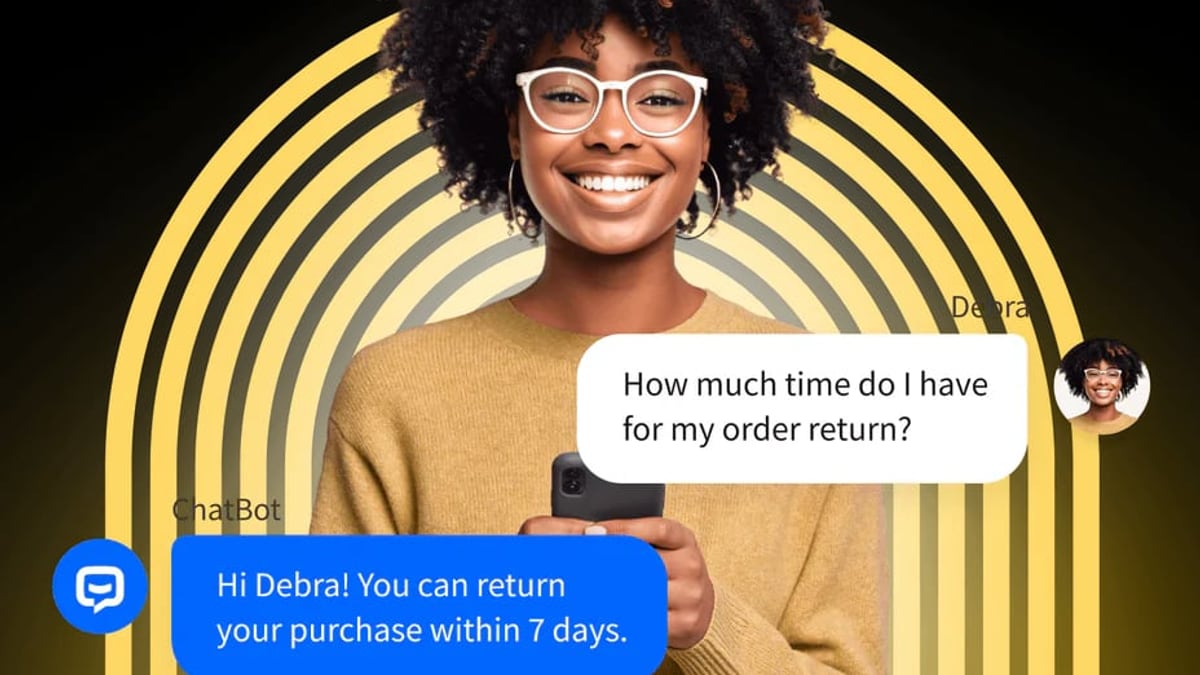
When customers ask a question on your website, they expect an instant, accurate answer—not a ticket number. HelpLook and ChatBot.com together make that possible. HelpLook gives you a polished, AI‑searchable knowledge base; ChatBot.com turns that knowledge into a 24/7 conversational assistant that works across your website, Facebook Messenger, Shopify, and more. This guide walks through why the combo works, how to set it up without coding, and real examples of the problems it solves.
Why Combine HelpLook and ChatBot.com?

How to Use HelpLook with ChatBot.com for Smarter AI Chat product interface and feature overview.
HelpLook is an all‑in‑one platform for building customer‑facing help centers, product manuals, and internal wikis. Its AI search (powered by models like OpenAI, Azure, and ERNIE Bot) can scan articles and give direct answers—but only inside the knowledge base widget or site. ChatBot.com puts that intelligence into an automated chat flow that proactively greets visitors, routes complex issues, and works on multiple channels.
When you connect HelpLook’s structured content to ChatBot.com’s AI agent, you:
- Answer more questions on chat – The bot pulls precise snippets from your HelpLook articles instead of relying on generic FAQ matches.
- Keep support human‑free overnight – HelpLook’s organized knowledge and ChatBot.com’s 24/7 availability mean zero‑wait answers.
- Reduce reliance on ticket escalation – A well‑fed chatbot deflects repetitive queries, freeing up agents for high‑value conversations.
- Maintain brand consistency – HelpLook’s custom domains and styling match your site, while ChatBot.com’s widget inherits your brand colors and tone.
What You’ll Need Before Starting
How to Use HelpLook with ChatBot.com for Smarter AI Chat product interface and feature overview.
- A HelpLook account with at least one knowledge base published. (Free plan works for basic testing.)
- A ChatBot.com account – the 14‑day trial is free, no credit card required.
- A live website where you can embed the ChatBot.com widget (and optionally the HelpLook widget).
Step‑by‑Step: How to Integrate HelpLook with ChatBot.com

How to Use HelpLook with ChatBot.com for Smarter AI Chat product interface and feature overview.
1. Build Your Knowledge Base in HelpLook
Log in to HelpLook and create a Site. Use the visual editor to add categories and articles. HelpLook’s rich editor supports Markdown, images, and videos—structure content so each article answers one self‑contained question clearly.
- Enable the HelpLook AI feature on your site. This generates an AI access token you’ll use later for smart search.
- Under Site settings, make the knowledge base public (unless you need internal‑only access). Copy the site URL. ChatBot.com will use this address to scan your content.
Need a head‑start? Check our comparison of HelpLook vs Documentation.AI to see why HelpLook’s editor and SEO features often win for public help centers. [Internal link to /helplook-vs-documentation-ai-comparison]
2. Set Up AI Search in HelpLook (Optional but Recommended)
HelpLook AI can serve direct answers inside its own search widget, but you can also use the AI token to power external bots. Navigate to AI Configuration, choose your preferred model (OpenAI, Azure, etc.), and save the token. You won’t directly paste it into ChatBot.com, but it’s useful if you ever want to embed HelpLook’s own chat widget alongside ChatBot.com’s messenger for in‑article assistance.
3. Train Your ChatBot.com Agent on HelpLook Content
Now move to ChatBot.com. Create a new AI Chatbot (or edit an existing one):
- In the chatbot editor, go to Training > Data sources.
- Choose Website and enter the public HelpLook site URL you copied earlier.
- Click Scan. ChatBot.com will crawl your knowledge base and build a training dataset from article titles, headings, and body text.
- Once the scan completes, review the imported topics. You can add manual responses or fallback messages.
After training, the AI agent will understand your help articles and can generate replies grounded in that content. For example, if a customer asks “How do I reset my password?”, the bot might reply with the steps directly from your HelpLook password‑reset article.
Pro tip: Turn on AI‑generated replies in ChatBot.com’s settings. The bot will then rephrase and condense the article text into a conversational message, keeping the response friendly and scannable.
4. Embed Both Widgets for a Seamless Support Experience
You can offer two layers of self‑service on the same page:
- ChatBot.com widget – Installed via a simple JavaScript snippet. It acts as the first line of defense, answering common questions instantly.
- HelpLook widget – Embedded as a floating help button or “Knowledge Base” icon. When a customer needs deeper documentation, they can open it and search the full article library.
To avoid confusion, configure ChatBot.com to include a “Search our knowledge base” quick reply that links directly to your HelpLook site or triggers the HelpLook widget.
If you’re using an ITSM like Freshservice, you can pair HelpLook with it too. See our step‑by‑step guide on How to Use HelpLook with Freshservice for Smarter IT Support. [Internal link to /how-to-use-helplook-with-freshservice]
Real‑World Examples of the Combo in Action
SaaS Onboarding
A startup uses HelpLook to host getting‑started guides and video tutorials. ChatBot.com intercepts new users on the pricing page with a proactive “Need help choosing a plan?” – the bot then serves the relevant comparison article from the HelpBook base and even collects contact info for later follow‑up. Result: 35% more trial‑to‑paid conversions.
E‑commerce Returns
An online retailer builds a HelpLook manual covering return policies, sizing charts, and order changes. ChatBot.com’s Facebook Messenger bot answers “Where is my order?” by pulling tracking‑related articles. Customer satisfaction scores improve because answers arrive instantly, even outside business hours.
Healthcare FAQ
A clinic’s HelpLook knowledge base explains insurance forms, appointment booking, and after‑care. The ChatBot.com agent on the website pre‑qualifies patients and points them to the exact HelpLook article. This cuts phone calls by 40% and lets the front desk focus on urgent cases.
HelpLook AI Chat vs ChatBot.com Native AI: Do You Need Both?
How to Use HelpLook with ChatBot.com for Smarter AI Chat product interface and feature overview.
| Feature | HelpLook AI (widget) | ChatBot.com AI Agent |
|---|---|---|
| Best for | In‑knowledge‑base search and quick answers inside content | Conversational flow, proactive greetings, multichannel delivery |
| Channels | Website (embed widget), internal sites | Website, Facebook, Shopify, Slack, WordPress, Webflow, API |
| AI model options | OpenAI, Azure, ERNIE Bot (configurable) | Built‑in NLP powered by large language models (managed) |
| Content source | Knowledge base articles (structured) | Scanned website content, uploaded documents |
| Pricing | Free plan available; paid from $25/month | Free trial; paid from $19/month |
They’re complementary, not competitive. HelpLook ensures your answers are accurate and well‑structured; ChatBot.com makes them conversational and accessible on the channels your customers already use. For a full self‑service stack, you’ll likely deploy both.
Related reading
- Zendesk Review 2025: AI-Driven Customer Service Platform - In-depth Zendesk review covering AI automation, omnichannel support, pricing, pros & cons from real users, and ideal use cases. Compare before you buy.
- How to Use HelpLook with Freshservice for Smarter IT Support - Learn to integrate HelpLook’s AI knowledge base with Freshservice ITSM. Step-by-step setup, embedding, chatbot deflection, and real-world examples for better self-service.
Sources and further reading
- Customize and Optimize Your AI-Powered Knowledge Base - HelpLook is a tool for quickly building a free help desk and knowledge base system, providing comprehensive support and assistance for your products. Help you create product manuals, blogs, FAQs, user guides, troubleshooting, and other content without coding, solving various problems for your users. By using HelpLook, you can add SEO optimized keywords to your official product website, helping more users discover and utilize your product. The fast, simple, and free user experience allows you to focus on product development and operations without worrying about the construction of the help center and knowledge base.
- Activate or deactivate chatbot - Learn how to activate or deactivate a chatbot in Infobip Chatbots. Control whether a chatbot is live and responding to customer messages.
- Help Center | ChatBot.com - Read articles and guides about ChatBot.com’s main features and functionalities. Follow step-by-step tutorials and master your bot-building skills with ease.
Frequently Asked Questions
Can HelpLook’s AI chatbot replace ChatBot.com?
HelpLook’s built‑in AI widget is excellent for on‑page knowledge base searches, but it doesn’t support external messaging platforms or proactive talk triggers out of the box. If you only need in‑site article Q&A, HelpLook AI alone might suffice. For true multichannel automation, ChatBot.com is the better front end.
Does ChatBot.com automatically update when I change a HelpLook article?
No. Changes in HelpLook aren’t pushed to ChatBot.com in real time. You need to re‑scan the HelpLook URL in ChatBot.com or manually edit the training data. For frequently updated docs, schedule a weekly re‑scan or use ChatBot.com’s API to trigger retraining.
Can I use HelpLook’s AI token directly in ChatBot.com?
ChatBot.com doesn’t accept external AI tokens for its core engine. The integration works best by letting ChatBot.com crawl your public HelpLook content. If you want to leverage HelpLook’s AI search inside ChatBot.com conversations, you can use the ChatBot.com API together with a custom webhook that queries HelpLook’s search endpoint, but that requires developer work.
Is this setup GDPR‑compliant if I serve European users?
Both HelpLook and ChatBot.com offer data processing agreements and security measures like TLS encryption and ISO 27001 certification (HelpLook). Configure cookie consent and data retention settings in both platforms to match your compliance requirements.
Conclusion
Pairing HelpLook’s structured, AI‑enhanced knowledge base with ChatBot.com’s conversational AI creates a support system that feels instant and human, without blowing up your help desk budget. You get the best of both worlds: meticulously authored content that ranks in search engines, wrapped in a chat experience that’s always on and always helpful.
At HelpLook, we often recommend this exact stack to SaaS and e‑commerce teams looking to streamline customer education while reducing ticket volume. The setup takes less than a day, requires zero coding, and scales with your content library. Ready to go further? Explore how HelpLook stacks up against other knowledge base solutions in our HelpLook vs Stonly comparison or dive into the wider ecosystem with our Top 10 AI‑Powered ITSM Platforms in 2026 analysis.
Start your free trial with both tools, connect them, and watch your support metrics improve.