
How to Use HelpLook with HubSpot: AI Knowledge Base + CRM
Your support team answers the same questions every day. Your sales team has no idea which prospects are stuck on a help article. Your CRM holds customer data, but not the knowledge that would resolve their issues. HelpLook and HubSpot solve different halves of this problem — and when you connect them, you get a support engine that knows your customers and a CRM that knows what they need.
This guide explains how HelpLook and HubSpot work together, walks through the setup, and shows practical workflows you can copy.
Why combine HelpLook with HubSpot?
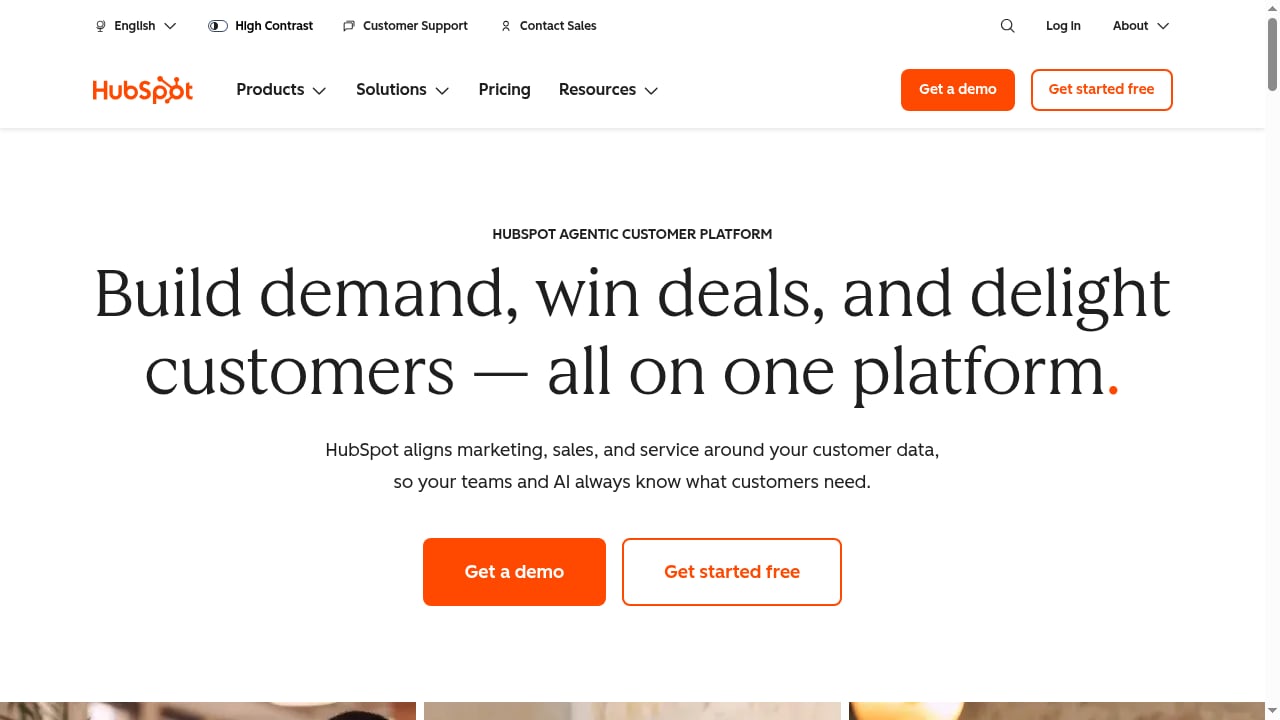
First viewport screenshot of HubSpot | Software & Tools for your Business - Homepage.
HelpLook is an AI-powered knowledge base and help desk platform. It lets you build customer-facing help centers, internal knowledge bases, FAQs, and product manuals without code. Its AI search surfaces answers instantly, and its SEO features help those answers get found on Google.
HubSpot is an agentic customer platform that unifies marketing, sales, and service software with CRM around a shared customer data foundation. It tracks every contact, deal, and conversation in one place.
The combination solves three common problems:
- Repetitive tickets. Customers ask questions your docs already answer. HelpLook's self-service portal deflects those tickets before they reach your inbox.
- Blind support agents. When a ticket does arrive in HubSpot, agents lack context about what the customer already read or tried. HelpLook's analytics show article views and search queries per session.
- Disconnected data. Marketing campaigns drive traffic to help content, but you can't see which articles influence conversions. Connecting both platforms closes that loop.
How HelpLook and HubSpot fit together

HubSpot product interface.
Think of HelpLook as the knowledge layer and HubSpot as the relationship layer.
| Layer | HelpLook | HubSpot |
|---|---|---|
| Primary role | AI knowledge base, help desk, self-service portal | CRM, marketing, sales, and service hub |
| Content | Help articles, FAQs, manuals, internal docs | Contact records, deals, tickets, email campaigns |
| AI use | AI search, answer generation from your docs | AI agents for lead scoring, ticket routing, content suggestions |
| Analytics | Article views, search terms, content gaps | Contact engagement, deal stages, ticket volume |
| Best for | Deflecting questions and empowering self-service | Managing relationships and automating go-to-market workflows |
You don't replace one with the other. You connect them so knowledge flows into the customer record and customer context flows back into support content.
Setup: connecting HelpLook to HubSpot
First viewport screenshot of A message from our CEO: Important HubSpot team and business changes.
HelpLook doesn't ship a native HubSpot connector out of the box, but you have three practical paths. Choose based on your technical resources.
Option 1: Embed HelpLook widgets in HubSpot pages
This is the fastest path. HelpLook provides embeddable widgets for web pages and applications. You can place a HelpLook search bar or help center widget inside HubSpot-hosted landing pages, knowledge base articles, or customer portal pages.
Steps:
- In HelpLook, go to your portal settings and generate the widget embed code.
- In HubSpot, open the page or template where you want the widget to appear.
- Add an HTML module or custom module and paste the HelpLook embed code.
- Publish and test the search behavior on desktop and mobile.
Result: Visitors on your HubSpot pages can search your HelpLook knowledge base without leaving the page. HubSpot still tracks the page view, so you see which pages drive help searches.
Option 2: Sync support data with HubSpot workflows
If you want ticket deflection data inside HubSpot, use HubSpot workflows and webhooks to pass events from HelpLook to HubSpot.
Steps:
- In HelpLook, identify the events you want to track — for example, article views, search queries with no results, or help desk ticket creation.
- Set up a webhook or API call from HelpLook to a HubSpot custom endpoint (or use a middleware tool like Zapier if you prefer no-code).
- In HubSpot, create custom properties on the contact or ticket object to store HelpLook data, such as
helplook_last_article_viewedorhelplook_search_term. - Build a workflow that triggers when those properties change — for example, send a follow-up email when a contact searches for a term with no matching article.
Result: Your HubSpot contact records show what customers are looking for in your knowledge base, even before they submit a ticket.
Option 3: Use HelpLook as your external knowledge base, HubSpot as your internal hub
Many teams run HelpLook as the public-facing help center and HubSpot as the internal system of record. In this setup:
- HelpLook hosts all customer-facing documentation, FAQs, and guides.
- HubSpot holds the customer conversations, tickets, and deal history.
- Agents copy the HelpLook article link into HubSpot ticket replies when answering questions.
- You track which articles are most linked in tickets to identify content that needs improvement.
This is the lowest-effort integration and works well for teams that want to start simple.
Practical workflows and examples
Example 1: Deflect tickets with AI search on your HubSpot knowledge base
A SaaS company embeds a HelpLook search widget on its HubSpot-hosted help center. When a customer types "how do I reset my API key," HelpLook's AI search returns the exact article. The customer resolves the issue without opening a ticket. HubSpot still records the page visit, so the marketing team sees that the help center is a high-traffic asset.
Example 2: Route high-intent leads from help content
An e-commerce store uses HelpLook to host product manuals and troubleshooting guides. When a visitor reads three articles about a specific product but doesn't buy, a HubSpot workflow triggers a targeted email with a demo offer. The HelpLook article view becomes a lead scoring signal in HubSpot.
Example 3: Close the content gap loop
A support team notices that "billing error 402" generates 50 HelpLook searches per week with no matching article. They create a webhook that sends this search term to HubSpot as a custom property on the contact. A HubSpot workflow assigns a task to the content team to write the missing article. Once published, the search term drops to zero.
Example 4: Combine HelpLook analytics with HubSpot reporting
Export HelpLook's article performance data (views, search terms, helpfulness ratings) and map it to HubSpot contacts using email or visitor ID. Build a HubSpot dashboard that shows which help articles are most viewed by customers in each deal stage. This reveals whether your documentation is helping or hurting conversion.
Common pitfalls and how to avoid them
- Duplicate content. If you copy HelpLook articles into HubSpot's knowledge base tool, you'll have two sources of truth. Keep HelpLook as the primary knowledge base and link to it from HubSpot.
- Broken tracking. Embedded widgets may not pass visitor identity to HubSpot. Use HelpLook's API to send a visitor ID or email when a logged-in user searches.
- Over-automation. Not every HelpLook search should trigger a HubSpot workflow. Start with high-intent events like "no results" or "pricing page viewed after help article."
- Ignoring SEO. HelpLook's SEO features help your help content rank on Google. Don't hide it behind a login wall unless it's internal-only.
When to use HelpLook vs HubSpot knowledge base

HubSpot product interface.
HubSpot offers a built-in knowledge base tool for customer service. It's convenient if you already live in HubSpot, but it's limited compared to a dedicated platform.
Choose HelpLook when you need:
- AI-powered search across a large content library
- No-code customization and branded portals
- SEO-optimized public help centers
- Internal knowledge bases for employees
- Advanced analytics on search behavior and content gaps
Choose HubSpot's knowledge base when you need:
- Tight integration with HubSpot tickets and conversations
- A simple, small knowledge base for internal agents
- Minimal setup and no additional vendor
Many teams use both: HelpLook for the public-facing, SEO-driven help center, and HubSpot's knowledge base for internal agent snippets.
Related reading
- HelpLook vs Helpjuice: Best Knowledge Base Software 2026 - Compare HelpLook and Helpjuice knowledge base software in 2026: AI search, pricing, SEO, customization, and which platform fits your support team.
- GitBook Review 2026: The Knowledge Layer for AI Docs - Evidence-based GitBook review for 2026: how its AI knowledge layer, content gaps, broken link checks, docs-as-code, pricing signals, and limits compare.
Sources and further reading
- Outside Business Hours Chatbot - Best Practices & Recommendations - Hello All! Hope you’re doing great! We need to implement an outside business hours or offline chatbot and I would like to ask your help by sharing some ideas, recommendations and/or best practices that could help us to…
- 8 Best Scheduling Apps That Integrate with HubSpot CRM - Explore the top 8 scheduling apps that seamlessly integrate with HubSpot CRM to enhance productivity and streamline meeting management.
- Customer said they can see other customers form data - Hello, We use HS forms on our site. Today a customer while filling out our form mentioned that they could see the name, email and phone numbers of our other customers. I cannot replicate this myself, and can’t imagine …
FAQ
Does HelpLook have a native HubSpot integration?
Not currently. You can connect them through embeddable widgets, webhooks, or middleware like Zapier. The widget method is the fastest; the webhook method gives you the deepest data sync.
Can I use HelpLook as my HubSpot knowledge base?
Yes. You can embed HelpLook search and article widgets inside HubSpot pages, or link directly to HelpLook articles from HubSpot tickets and emails. HubSpot remains your CRM and ticketing system; HelpLook remains your knowledge layer.
How do I track HelpLook searches in HubSpot?
Use HelpLook's API or webhooks to send search events to HubSpot custom properties. Then build workflows or reports based on those properties. You'll need a developer or a no-code automation tool for the initial setup.
Will this integration slow down my HubSpot pages?
HelpLook widgets are lightweight and load asynchronously. Test performance after embedding, and use lazy loading if you place multiple widgets on one page.
What if I already use HubSpot's knowledge base?
You can keep both. Use HubSpot's knowledge base for internal agent-only content and HelpLook for customer-facing, SEO-optimized help centers. Link between them where useful.
Conclusion
HelpLook and HubSpot solve complementary problems: HelpLook gives customers instant answers and gives your team insight into what they're searching for; HubSpot gives you the customer context to act on that insight. Start with the widget embed to get quick wins, then layer in webhooks and workflows as your support data matures. The goal isn't to replace one tool with the other — it's to make your knowledge base and your CRM work from the same understanding of the customer.
If you're evaluating knowledge base platforms alongside HelpLook, see our comparison of HelpLook vs Document360 vs Documentation.AI or explore the top help desk and customer service software for 2026. For a related integration pattern, read How to Use HelpLook with ChatBot: AI Support Setup Guide.
For more on HubSpot's platform capabilities, visit the HubSpot website. To explore HelpLook's features, visit HelpLook.