
How to Use HelpLook with eesel AI: Setup & Workflow
Customer support teams often face a frustrating gap: they invest in a well-organized knowledge base, but their helpdesk AI still gives vague or outdated answers. HelpLook and eesel AI solve this by pairing a structured, AI-powered knowledge base with autonomous agents that live inside your existing helpdesk. This guide explains how the two tools complement each other, walks through the setup, and shows practical workflows that reduce ticket volume and response times.
Why combine HelpLook and eesel AI?

eesel AI product interface.
HelpLook is a no-code platform for building AI-powered knowledge bases, help centers, and content portals. It centralizes product and business knowledge, offers AI-driven search and a Q&A chatbot, and gives you full control over content structure, branding, and access permissions.
eesel AI provides fully autonomous AI agents that operate inside helpdesks like Zendesk, Gorgias, Freshdesk, Slack, email, and website chat. These agents categorize tickets, draft replies, answer product and order questions, process returns, and assist internal teams.
The combination addresses a common problem: AI agents are only as good as the knowledge they draw from. HelpLook ensures that knowledge is accurate, well-organized, and continuously updated. eesel AI ensures that knowledge is applied at the point of conversation—automatically, across channels, without switching tools.
In short, HelpLook is the brain; eesel AI is the hands. Together they let you scale self-service and agent assistance without sacrificing quality.
How the integration works

eesel AI product interface.
There is no native one-click integration between HelpLook and eesel AI. Instead, you connect them through a shared knowledge source. eesel AI can learn from your HelpLook help center content—either by ingesting published articles or by connecting to HelpLook's API or sitemap. This means the AI agent's answers are grounded in the same content your customers see on your help site.
The workflow is straightforward:
- Author and organize content in HelpLook. Create articles, FAQs, troubleshooting guides, and product documentation. Use categories, tags, and permissions to keep content structured.
- Publish your HelpLook site. Make sure the content is live and accessible to eesel AI (public or via authenticated access).
- Connect HelpLook as a knowledge source in eesel AI. Add your HelpLook site URL or API endpoint to eesel AI's knowledge settings.
- Configure eesel AI agents. Set up agents for your helpdesk channels (e.g., Zendesk, Freshdesk, Gorgias) and define which types of tickets they handle.
- Test and refine. Use eesel AI's simulation mode on past tickets to see how well the agent answers using HelpLook content. Adjust articles or agent prompts as needed.
Step-by-step setup
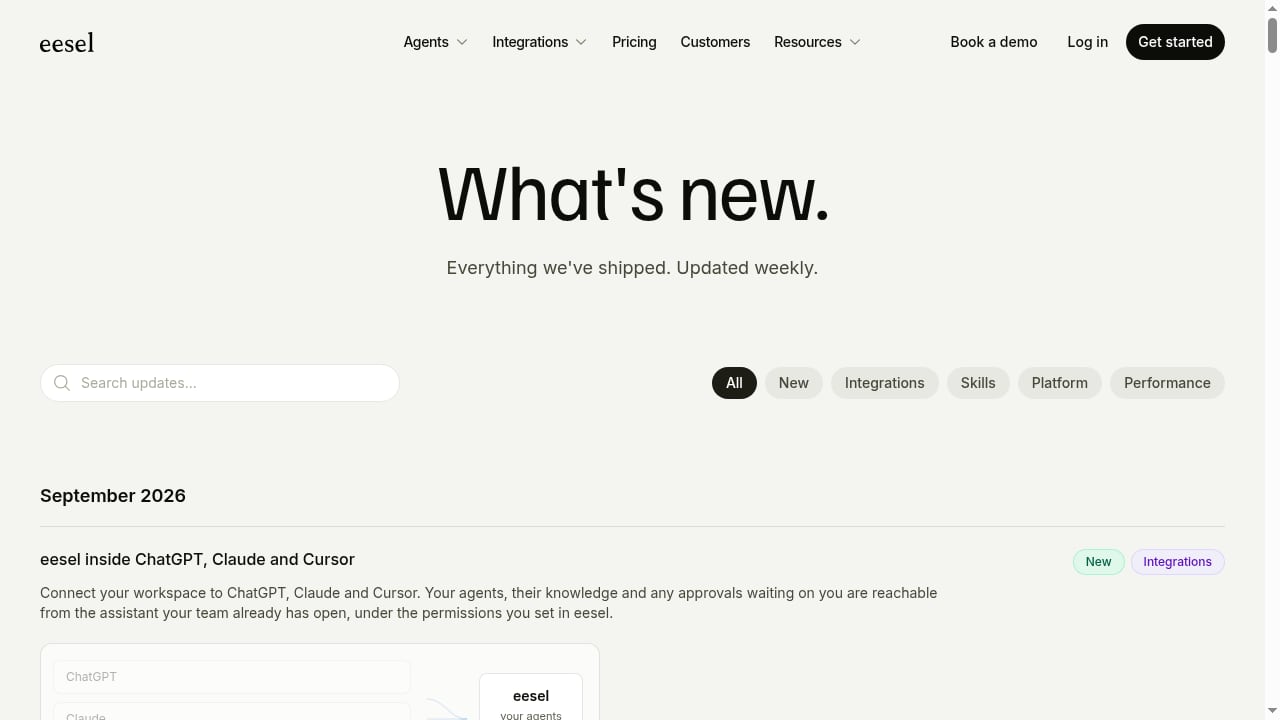
First viewport screenshot of Changelog | eesel AI.
Step 1: Prepare your HelpLook knowledge base
Before connecting eesel AI, ensure your HelpLook content is complete and accurate. Focus on the questions your support team answers most often. Use HelpLook's WYSIWYG editor to create clear, scannable articles with headings, bullet points, and screenshots. Organize content into logical categories (e.g., Billing, Shipping, Account Management) and apply tags for easier retrieval.
If you have an existing help center, you can import content or rebuild it in HelpLook. Take advantage of HelpLook's AI-assisted search and chatbot features to test whether your content answers common queries.
Step 2: Publish and verify accessibility
eesel AI needs to access your HelpLook content. If your help center is public, you can simply provide the site URL. If it's behind a login, use HelpLook's access controls to create a dedicated read-only user or API token for eesel AI. Verify that the content is reachable and that article structure (headings, lists, tables) is preserved.
Step 3: Add HelpLook as a knowledge source in eesel AI
In eesel AI's dashboard, navigate to the knowledge or data sources section. Add a new source and choose the option for a website or API. Enter your HelpLook site URL or API endpoint. eesel AI will crawl or sync the content. Depending on the size of your knowledge base, this may take a few minutes to an hour.
You can also upload documents directly to eesel AI, but using HelpLook as the source of truth ensures consistency and reduces duplication.
Step 4: Configure eesel AI agents for your helpdesk
Connect eesel AI to your helpdesk (e.g., Zendesk, Freshdesk, Gorgias) using the native integration. Create agents for different purposes:
- Triage agent: Categorizes incoming tickets and routes them to the right team.
- Reply agent: Drafts responses using HelpLook content and approved macros.
- Order agent: Handles order status, returns, and refunds by pulling data from your e-commerce platform.
- Internal assistant: Answers employee questions in Slack using the same knowledge base.
Set the agent's tone, escalation rules, and which tickets it can auto-resolve versus which need human review.
Step 5: Test with simulation mode
Before going live, use eesel AI's simulation feature to run your agent against historical tickets. This shows how often the agent would have resolved the ticket correctly using HelpLook content. Identify gaps—questions the agent couldn't answer—and update your HelpLook articles accordingly.
Step 6: Monitor and iterate
After launch, review eesel AI's reports to see resolution rates, common unanswered questions, and customer satisfaction. Use these insights to update HelpLook content. Over time, the loop between content and automation strengthens.
Practical examples
Example 1: E-commerce return requests
A customer emails asking about the return policy for a specific product. eesel AI's reply agent reads the ticket, searches HelpLook for the relevant return policy article, and drafts a response with a link to the return form. If the customer replies with an order number, the agent can check the order status via an integration and confirm eligibility. The ticket is resolved without human intervention.
Example 2: SaaS onboarding questions
A new user asks how to invite team members. eesel AI's agent finds the HelpLook article on user management, summarizes the steps, and includes a screenshot. If the question is more complex (e.g., SSO setup), the agent escalates to a human with a summary and suggested resources.
Example 3: Internal IT support
An employee asks in Slack how to request software access. eesel AI's internal assistant pulls the relevant HelpLook article and replies with the request form link. This reduces IT ticket volume and speeds up onboarding.
Common challenges and how to avoid them
- Content gaps: If HelpLook lacks an article, eesel AI can't answer. Regularly review unanswered questions and fill gaps.
- Outdated content: Keep HelpLook articles current. Use versioning and review cycles.
- Over-automation: Not every ticket should be auto-resolved. Set clear escalation rules for sensitive or complex issues.
- Access issues: Ensure eesel AI can reach your HelpLook content. Test the connection after any permission changes.
When to use HelpLook with eesel AI (and when not to)
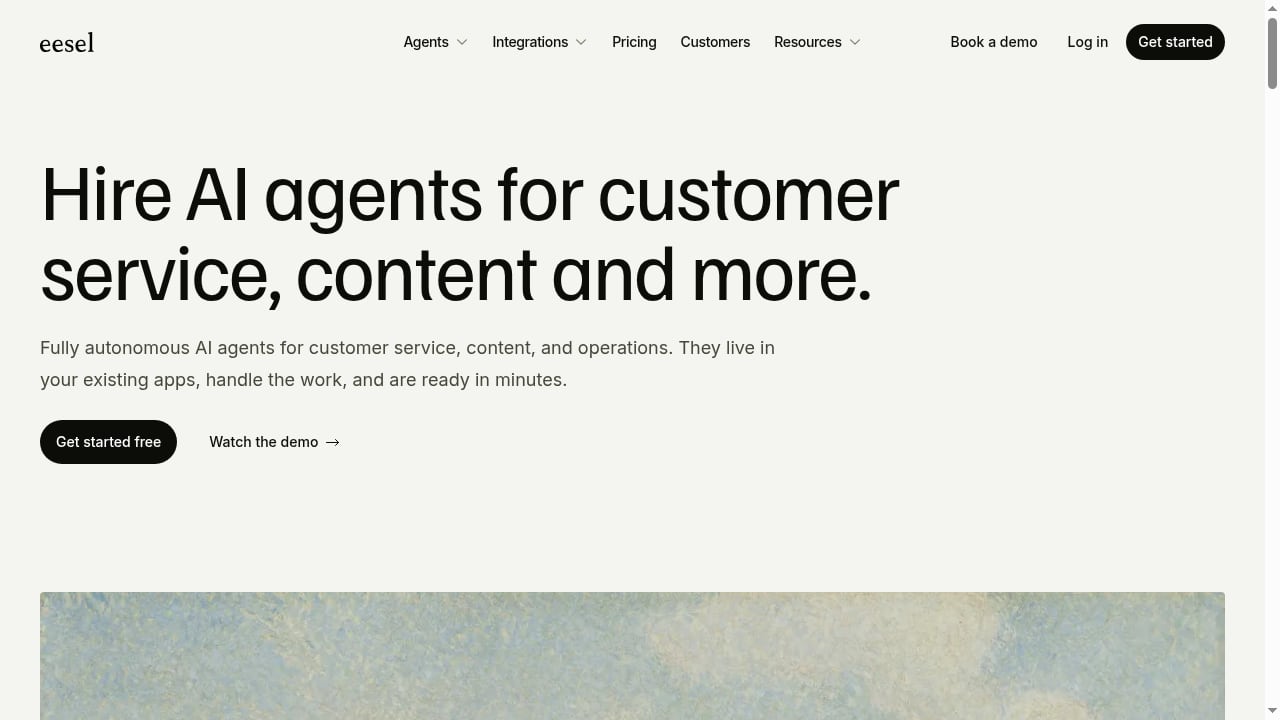
First viewport screenshot of Hire AI agents for customer service, content and more | eesel AI.
This combination is ideal for teams that:
- Already use a helpdesk (Zendesk, Freshdesk, Gorgias) and want to add AI automation.
- Have a growing knowledge base and want to leverage it for both self-service and agent assistance.
- Need to scale support without proportional headcount growth.
It may not be the best fit if:
- You have very low ticket volume (under 100/month) and manual handling is sufficient.
- Your knowledge is highly unstructured and not yet documented.
- You require a fully native, single-vendor solution.
For a broader comparison of AI knowledge base platforms, see our top 10 AI documentation and knowledge base platforms for 2026. If you're evaluating helpdesk AI options, our HelpLook vs SAAS First comparison may help.
Related reading
- Chatbase Review 2026: AI Customer Support Tested - Evidence-based Chatbase review for 2026: features, pricing signals, setup, strengths, limits, and who should use it for AI customer support.
Sources and further reading
- Integration AI Apps - Apix-Drive - AI Apps Catalog
FAQ
Does HelpLook have a native integration with eesel AI?
No, there is no native one-click integration. You connect them by adding your HelpLook site as a knowledge source in eesel AI, either via URL or API.
Can eesel AI read content behind a login?
Yes, if you provide access via API token or a dedicated user account. HelpLook's permission management lets you create read-only access for eesel AI.
How long does setup take?
Initial setup can take 30–60 minutes, plus time to prepare your HelpLook content. Testing and refinement may take a few days.
Will eesel AI replace my support team?
No. eesel AI is designed to augment your team by handling repetitive queries and assisting agents. Complex issues still require human judgment.
What if eesel AI gives a wrong answer?
Use simulation mode and reports to identify gaps. Update HelpLook content and adjust agent prompts. You can also set escalation rules to route uncertain queries to humans.
Conclusion
Combining HelpLook and eesel AI creates a powerful support stack: HelpLook provides the structured, AI-ready knowledge base, and eesel AI applies that knowledge autonomously across your helpdesk channels. The result is faster resolution, consistent answers, and a support team that can focus on complex, high-value interactions. Start by auditing your HelpLook content, connect it to eesel AI, and iterate based on real ticket data. For a deeper dive into AI knowledge base platforms, explore our HelpLook vs Chatbase vs Document360 comparison.
External references: eesel AI blog on Salesforce AI, eesel AI guide to WhatsApp Business integration for Freshdesk.