
How to Use HelpLook with Slack: AI Knowledge Base Workflow
Your support team lives in Slack, but your answers live in HelpLook. Every time an agent needs a policy, a troubleshooting step, or a product detail, they leave the conversation, search the help center, copy a link, and paste it back. Multiply that by dozens of questions a day and the context switching becomes the bottleneck.
This guide explains how HelpLook and Slack work together, how to set up the connection, and the practical workflows that turn your knowledge base into something your team can use without leaving chat.
Why pair HelpLook with Slack?
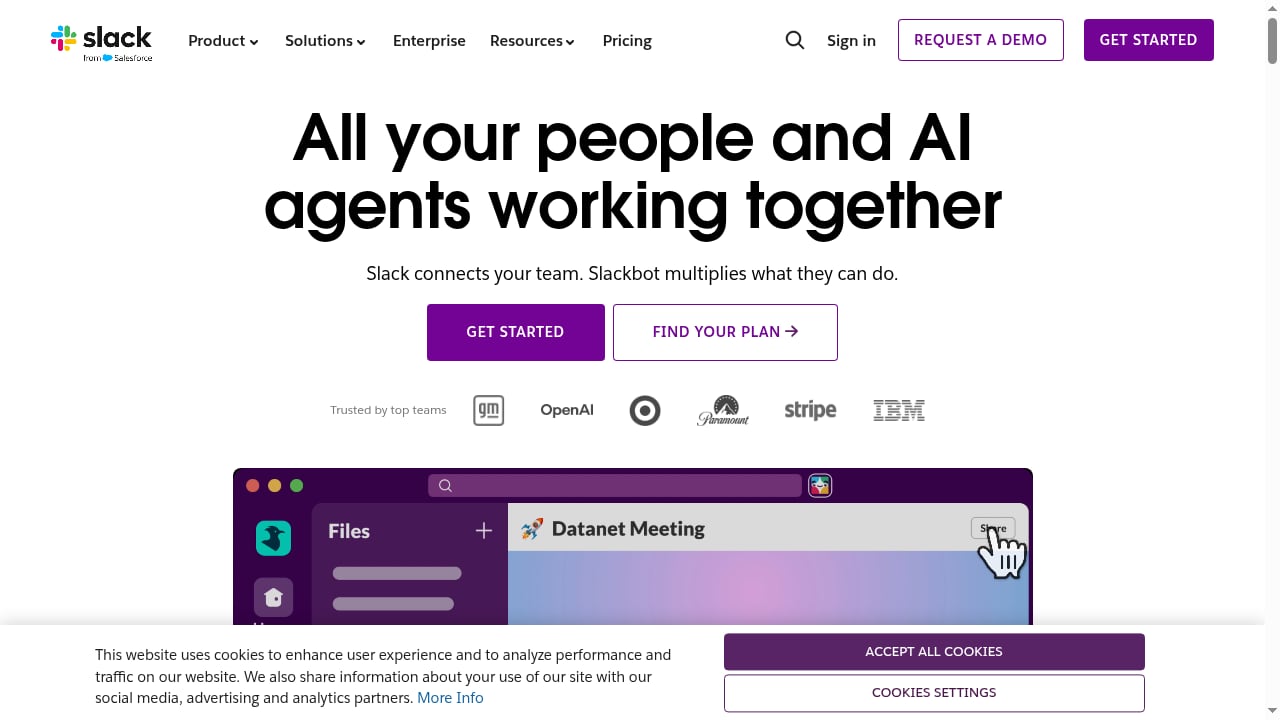
First viewport screenshot of slack.com.
HelpLook is an AI knowledge base and help center platform. It lets teams build public help centers, private internal wikis, and e-commerce manuals without code, with AI-powered search and chatbots layered on top. Slack is where your team already coordinates work: channels, threads, files, and AI agents in one shared workspace.
The combination solves a specific problem: knowledge that exists but is hard to reach at the moment of need. HelpLook stores and organizes the answer; Slack delivers it where the question is asked.
| Problem | HelpLook alone | HelpLook + Slack |
|---|---|---|
| Agents hunt for answers mid-conversation | Search the help center in another tab | Ask in a channel and get the article link |
| Recurring internal questions | Stored in the knowledge base, rarely read | Surfaced in Slack threads and pinned answers |
| Customer-facing replies drift from docs | Docs updated, agents unaware | Update notifications posted to Slack |
| New hires learn slowly | Onboarding docs exist | Docs shared in onboarding channels |
How the two tools fit together
First viewport screenshot of slack.com.
There are three common patterns, and most teams use more than one.
1. Knowledge lookup inside Slack
Agents ask a question in a support channel. A bot or workflow queries HelpLook's AI search and returns the most relevant article. This is the fastest pattern to adopt because it requires no change to how customers contact you.
2. Article sharing and notifications
When a HelpLook article is published or updated, a message lands in a Slack channel such as #product-updates or #support-docs. Agents see the change without polling the help center.
3. AI-assisted replies across channels
HelpLook's AI chatbot can answer customer questions on your website widget and other chat channels. Slack becomes the place where agents review escalations, discuss gaps, and request new articles when the AI cannot answer.
Setup: connecting HelpLook to Slack
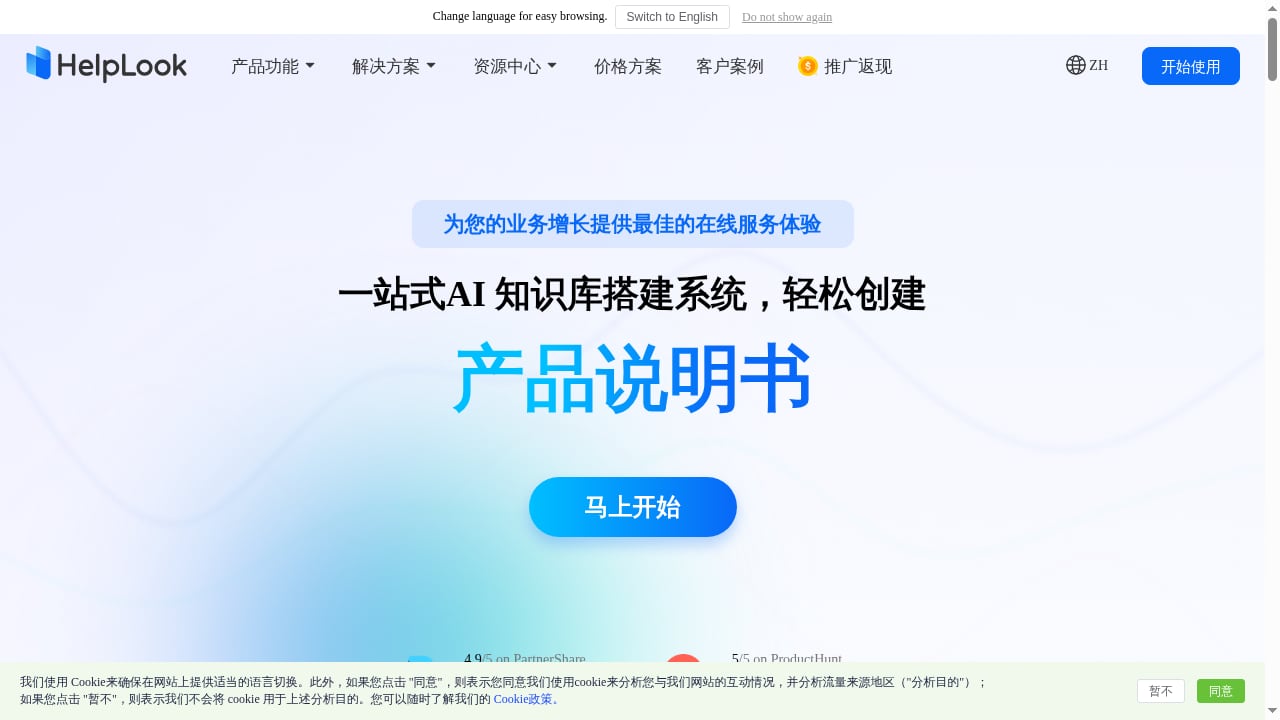
First viewport screenshot of www.helplook.net.
Exact menu labels vary by plan and release, so treat these as the workflow to follow rather than a fixed click path.
Step 1: Prepare your HelpLook knowledge base
Before connecting anything, make sure the content is worth surfacing.
- Organize by audience. Separate public help center content from private internal articles. A customer-facing article and an internal troubleshooting note should not live in the same space.
- Write question-shaped titles. "How do I reset my API key?" retrieves better than "API key management."
- Add AI search or chatbot coverage. HelpLook supports AI-powered search and chatbots built on models such as GPT-3.5/4.0 and Wenxin Yiyan. Confirm which knowledge spaces the AI is allowed to draw from.
- Check permissions. If your help center is private, confirm that the Slack integration uses credentials with access to the right spaces.
Step 2: Get your HelpLook API credentials
Most integrations between HelpLook and a chat platform work through an API token. In HelpLook, look for the API or integration settings in your workspace administration area and generate a token scoped to the knowledge base you want to expose. Store it in a password manager, not in a Slack channel.
If you are connecting HelpLook to a multi-channel inbox rather than Slack directly, the same token pattern applies; our walkthrough of using HelpLook with Kommunicate shows how the credential handoff works in practice.
Step 3: Choose your Slack connection method
There are two realistic paths.
Option A: A pre-built integration or app. Check the Slack App Directory and HelpLook's own integration documentation for an official connector. If one exists, installation is usually a few clicks plus the token from Step 2.
Option B: A custom bot or workflow. If no official connector fits your needs, build a lightweight Slack app that calls HelpLook's search API. Slack's platform documentation covers app creation, slash commands, and event subscriptions; the Slack API documentation is the starting point. A no-code automation tool can also bridge the two if you prefer not to write code.
Step 4: Define the commands and channels
Keep the surface area small at first.
- A slash command such as
/helplook <question>that returns the top matching article. - A dedicated channel like
#ask-support-docswhere lookups are allowed. - A notification channel like
#docs-updatesfor publish events.
Step 5: Test with real questions
Pull ten questions from last week's support tickets and run them through the integration. Check that the returned article actually answers the question, not just shares keywords. If results are weak, improve article titles and add synonyms before expanding access.
Step 6: Set permissions and guardrails
Decide who can query which knowledge spaces. Customer-facing content can usually be shared broadly inside the company; internal runbooks, pricing notes, and legal guidance should be restricted. HelpLook's ISO/IEC 27001 certification speaks to its security posture, but access design is still your responsibility.
Practical examples
Example 1: A support agent needs a refund policy mid-thread
A customer asks in your help desk whether a subscription can be refunded after 30 days. The agent types /helplook refund after 30 days in #support-floor. The bot returns the relevant HelpLook article link and a one-line summary. The agent pastes the link into the customer reply and moves on. No tab switching, no stale answer.
Example 2: Product ships a change, docs update, Slack notifies
A product manager updates the HelpLook article on a changed onboarding flow. The integration posts to #docs-updates: the article title, a link, and who changed it. Support leads review it before the next shift. This closes the gap between "docs updated" and "agents know."
Example 3: AI chatbot can't answer, Slack picks up the gap
Your HelpLook AI chatbot handles website questions. A customer asks something the knowledge base does not cover. The escalation lands in a Slack channel where the support team drafts an answer, publishes a new HelpLook article, and the chatbot covers it next time. Over a quarter, this loop shrinks your unanswered-question rate.
Example 4: Onboarding a new support hire
A new agent joins #support-onboarding. A pinned workflow lets them ask HelpLook questions directly in the channel, from "how do we handle chargebacks" to "what is our SLA for enterprise accounts." They learn from the same source of truth customers see, which reduces the drift between what agents say and what the help center promises.
Where the combination falls short
First viewport screenshot of slack.com.
Be honest about the limits before you commit.
- Slack is not a ticket system. Lookups in Slack help agents answer faster, but they do not replace a help desk. If you need ticketing, compare options in our HelpLook vs Hesk breakdown.
- Garbage in, garbage out. An AI lookup over thin or outdated articles produces confident wrong answers. Content maintenance is the real work.
- Permissions get complicated. Mixing public and private knowledge in one bot is a common security mistake. Scope tokens narrowly.
- Adoption is cultural. If agents do not trust the bot, they will keep searching manually. Start with one team and one channel.
HelpLook vs. dedicated Slack knowledge bots
Several tools position themselves as Slack-native knowledge assistants, surfacing answers from documents and past conversations. They are convenient but often shallow on the help center side: they answer inside Slack but do not give you a public, SEO-friendly help center or an embeddable AI chatbot for customers.
HelpLook's advantage is the full loop: author content once, publish it as a public or private portal, embed it as a website widget, and surface it in Slack. If your priority is purely internal Q&A inside Slack, a Slack-native bot may be simpler. If you need customer-facing documentation and internal lookup from one source, HelpLook is the stronger fit. For a broader view of how AI knowledge tools compare, see our HelpLook vs HelpSite vs Guru comparison.
Related reading
- HelpLook vs HelpDocs vs HappyFox: Which Support Tool Fits? - Compare HelpLook, HelpDocs, and HappyFox on knowledge base, AI, help desk, pricing, and SEO to choose the right support stack for your team.
- HelpSite Review 2026: AI Knowledge Base Tested - Evidence-based HelpSite review covering AI knowledge base features, pricing, setup, strengths, limitations, and ideal users for 2026.
Sources and further reading
- 19 Best Slack Chatbots for a Smarter Workspace in 2025 - Discover the best Slack bots to manage tasks, meetings, and questions. This guide highlights top bots that improve workplace communication and efficiency.
- Quick Start [Application] - Supercharge your workflow with SaleSmartly's App Market: AI chatbots, multilingual tools, bulk email, and seamless e-commerce integrations.
- 20 AI-Driven Knowledge Management Tools in 2025 - Explore 20 AI-driven knowledge management tools that help organizations capture, process, and utilize information more effectively for better decision-making.
FAQ
Does HelpLook have an official Slack app?
Check HelpLook's integration documentation and the Slack App Directory for the current status, since connectors change. If no official app is listed for your plan, you can still connect the two through HelpLook's API and a custom Slack app or automation workflow.
Do I need to know how to code to connect HelpLook and Slack?
Not necessarily. If a pre-built connector exists, setup is configuration only. A custom bot requires some development work, but no-code automation platforms can handle simple lookup and notification flows.
Can the Slack integration search private HelpLook knowledge bases?
It depends on the credentials you use. Generate an API token with access to the specific private space you want to expose, and restrict the Slack channels where that bot can be queried.
Will this replace our help desk?
No. The integration speeds up answer retrieval and keeps documentation visible. Ticketing, SLAs, and customer conversation history still belong in a help desk or shared inbox.
How do we measure whether it is working?
Track three signals: time to first response on questions that used a HelpLook lookup, the share of queries where the bot returned a useful article, and the number of new articles created from unanswered questions. If the third number falls over time, your knowledge base is maturing.
Conclusion
HelpLook and Slack solve different halves of the same problem. HelpLook gives you a structured, AI-searchable source of truth; Slack puts it in front of the people who need it, at the moment they need it. Start with a single lookup command and one notification channel, test against real support questions, and expand only when the answers are reliably good. The setup is modest; the payoff is fewer context switches and a support team that answers from the same documentation your customers read.
For a wider look at how AI knowledge bases fit into support stacks, see our ranking of agentic B2B customer support platforms.